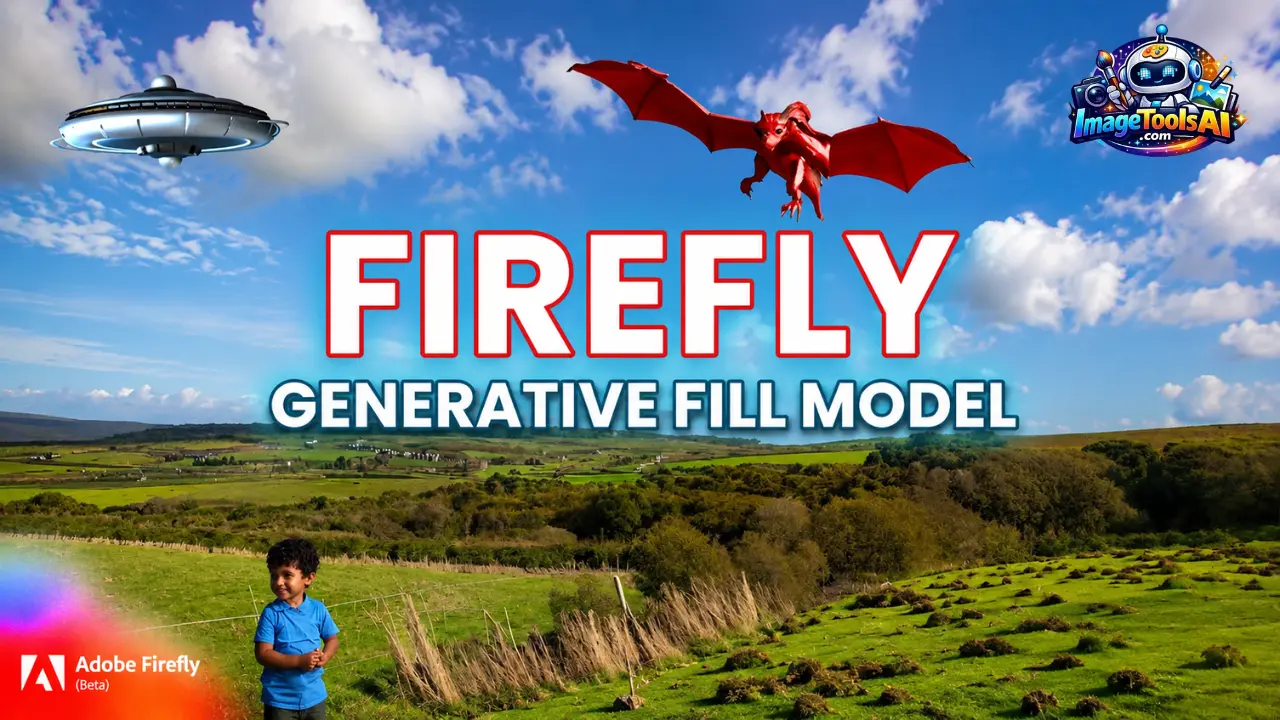
Introduction
Now picture this: swapping out bits in photos started basic – just erase stuff, done. Over time, though, things got smarter, way smarter. Take how today’s tech digs into whole scenes, not just pixels. One tool stands out here – Adobe’s Firefly model. It doesn’t just fill gaps; it imagines them right. Artists lean on it now. So do ad makers, photo editors, and design folks. Its reach? Pretty wide. What once felt like sci-fi is routine work stuff now.
What sets Adobe’s AI apart is how it handles edits. Rather than dropping elements straight into a picture, it studies what’s already there – lighting, tones, surfaces, depth – to build additions that fit right in. The scene guides the result. Shadows align. Colors match. Textures follow suit. Perspective stays consistent. It feels like part of the original.
This comprehensive guide goes much deeper.
You’ll learn:
- How Firefly Generative Fill works
- How to use it inside Photoshop
- Professional workflows
- Prompt engineering techniques
- Real-world business use cases
- Comparisons with Midjourney, DALL-E, and other tools
- Troubleshooting methods
- Expert tips for better results
By the end, you’ll understand how to maximize Adobe’s AI ecosystem efficiently.
What Is the Firefly Generative Fill Model?
Picture something – Adobe built a smart tool named Firefly that fills gaps in photos based on words you type. It sees what’s around the area you edit, then adds or erases stuff naturally. Instead of guessing, it uses context like shadows, colors, and textures. Type a description, and watch it adjust the frame accordingly. Nothing feels pasted; everything blends. The model reshapes parts without leaving traces behind.
Fueled by Adobe Firefly, it lives inside Photoshop along with the Firefly web tools. Built right into both apps, power comes straight from the source.
Starting with what’s already there, Generative Fill tweaks images instead of building them from nothing. It works smartly within the current picture.
The AI analyzes:
- Lighting
- Colors
- Shadows
- Perspective
- Object relationships
- Texture patterns
- Spatial awareness
This process is known as context-aware image synthesis.
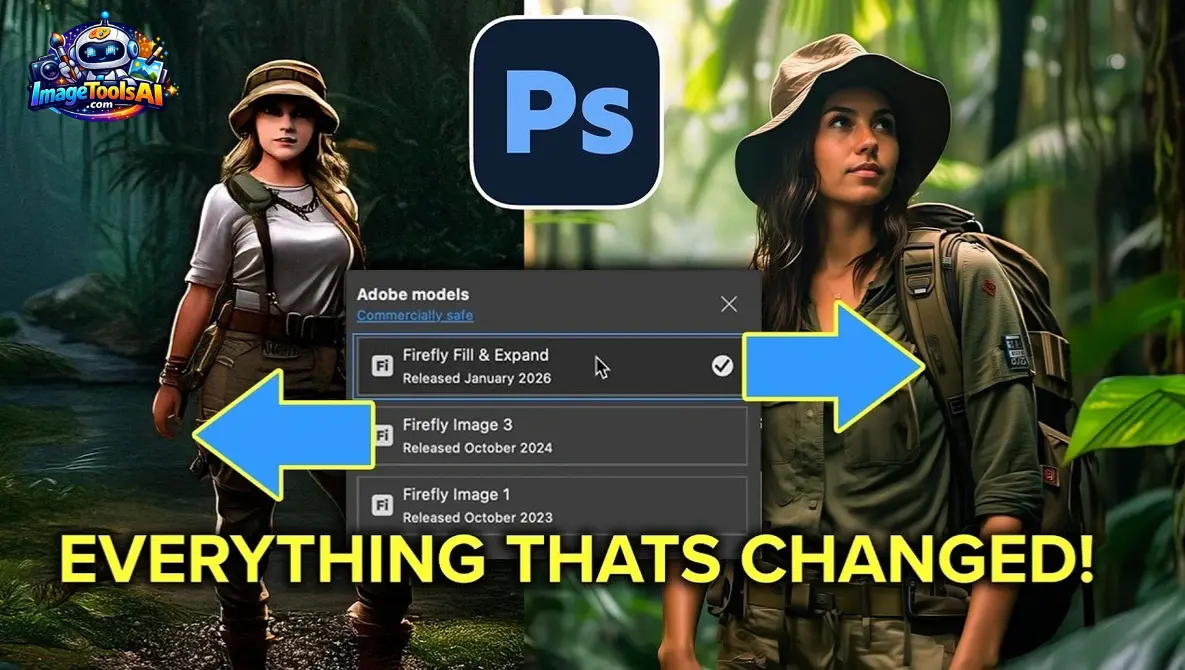
What Can Firefly Generative Fill Do?
It can:
Add new objects
Replace existing objects
Expand image borders
Change backgrounds
Create realistic extensions
Generate marketing assets
Improve compositions
Why Is It Different From Traditional Editing?
Traditional editing requires:
- Cloning
- Masking
- Layer adjustments
- Manual retouching
Firefly automates much of this process.
Instead of spending 30 minutes editing an image, users can complete many tasks in under 60 seconds.
How Firefly Generative Fill Works
Many competitors fail to explain this section.
Let’s simplify it.
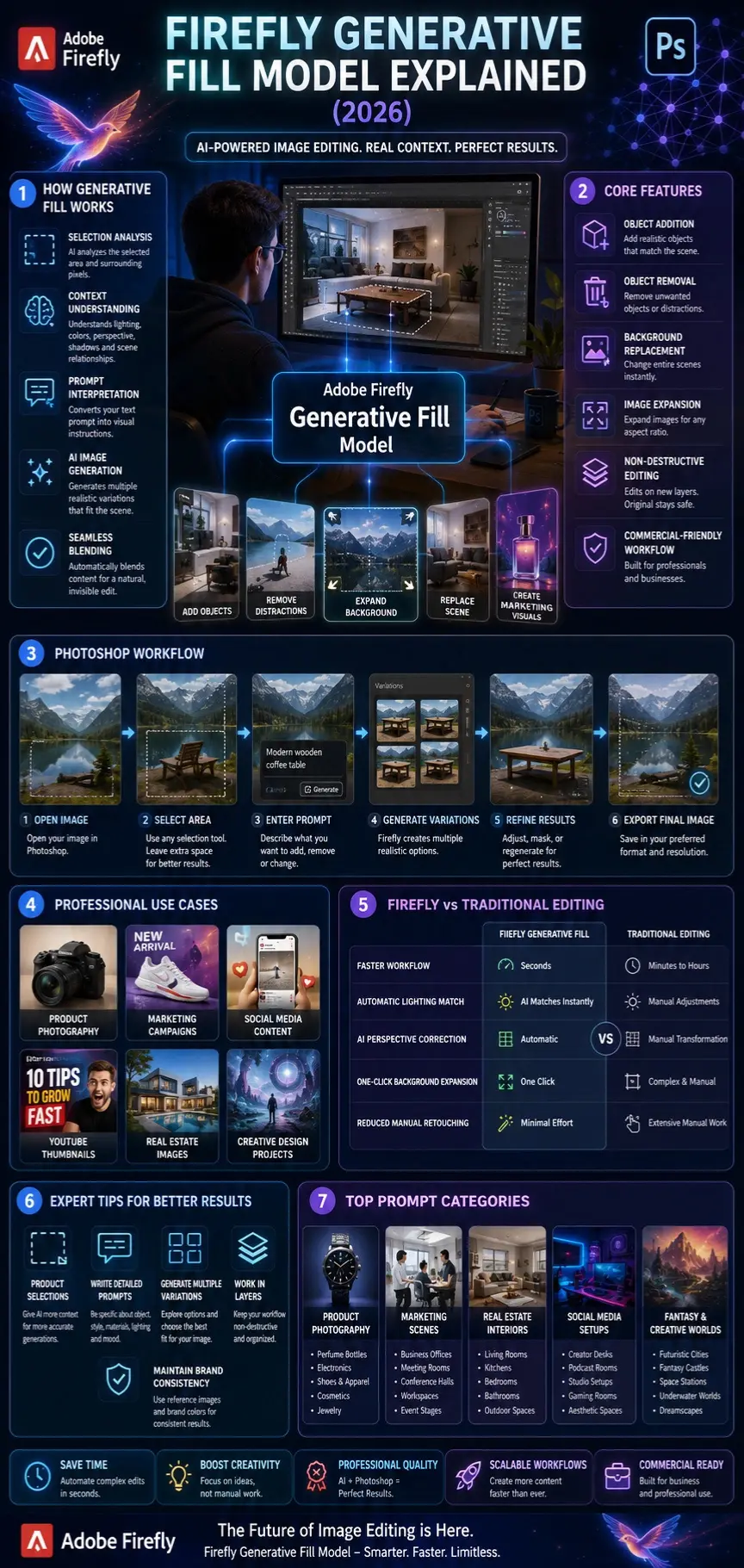
The Firefly Generative Fill system works through five major stages.
Selection Analysis
The user selects an area.
This selection tells the AI:
“Only modify this specific region.”
The AI studies:
- Edges
- Shape boundaries
- Nearby objects
- Empty spaces
Larger selections often produce better results.
Context Understanding
The AI examines the entire image.
It understands:
- Scene type
- Environment
- Camera angle
- Color palette
- Light direction
- Object relationships
This context awareness makes edits look realistic.
Prompt Interpretation
If you type:
Add a wooden coffee table
The AI interprets:
- Object = coffee table
- Material = wood
- Style = inferred from surroundings
- Position = selection area
Image Generation
The model generates multiple variations.
Each variation is optimized for:
- Texture consistency
- Lighting consistency
- Perspective consistency
Seamless Blending
Finally, the AI blends the generated content into the original image.
It adjusts:
- Shadows
- Colors
- Reflections
- Edges
The goal is to make the edit appear invisible.
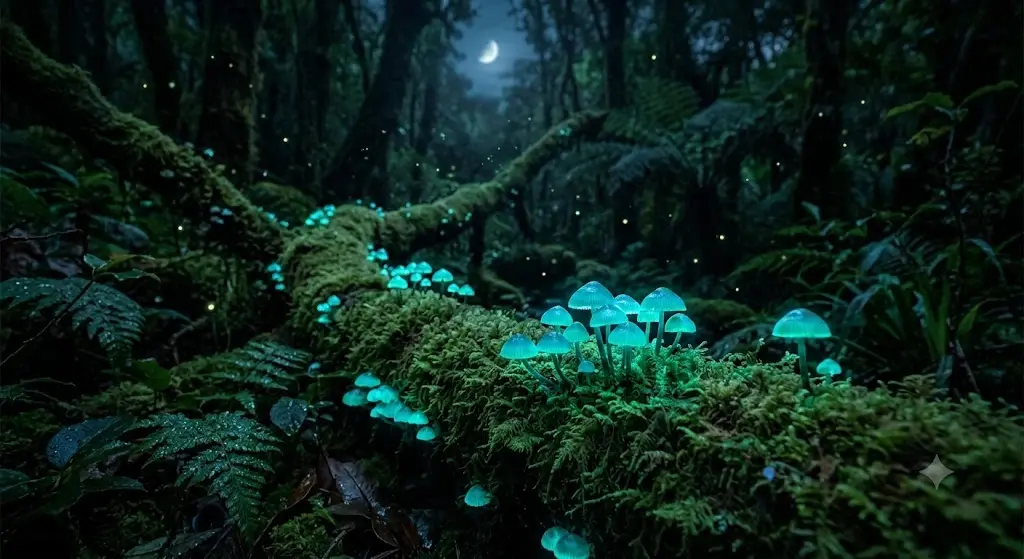
The Evolution of Firefly Generative Fill
Adobe has continuously improved its AI ecosystem.
| Version | Major Improvement |
| Firefly 1 | Basic image generation |
| Firefly 2 | Improved realism |
| Firefly 3 | Better text rendering |
| Firefly 4 | Faster generation |
| Firefly Fill & Expand | Context-aware expansion |
| Future versions | Multi-model integration |
Adobe is increasingly integrating multiple AI systems.
These may include:
- Firefly models
- FLUX models
- Gemini integrations
- Third-party AI systems
Why Firefly Matters in 2026
AI image editing is becoming an essential business skill.
Professionals need speed without sacrificing quality.
Firefly helps solve this.
Growing Industries Using It
Marketing Teams
Create:
- Ads
- Social media content
- Landing page visuals
E-commerce Brands
Generate:
- Product backgrounds
- Lifestyle scenes
- Promotional images
Designers
Build:
- Mockups
- Concept art
- Presentations
Real Estate Agents
Enhance:
- Property photos
- Staging visuals
- Outdoor scenes
Content Creators
Produce:
- Thumbnails
- Blog graphics
- YouTube assets
Key Features of Firefly Generative Fill
Object Addition
Add realistic objects.
Examples:
- Trees
- Furniture
- People
- Vehicles
Object Removal
Remove distractions.
Examples:
- Tourists
- Wires
- Trash bins
- Signs
Image Expansion
Expand images for:
- YouTube
- Websites
Background Replacement
Generate entirely new environments.
Examples:
- Beaches
- Offices
- Mountains
- Studios
Non-Destructive Editing
Original images remain safe.
Edits occur on separate layers.
Commercial-Friendly Workflow
Adobe designed Firefly for professional usage.
This makes it attractive for businesses.

Firefly Fill & Expand vs Older Models
| Feature | Traditional Photoshop | Firefly Fill & Expand |
| Object removal | Manual | AI automated |
| Background extension | Difficult | One click |
| Perspective matching | Manual | Automatic |
| Lighting adjustment | Manual | AI assisted |
| Speed | Slow | Fast |
| Ease of use | Intermediate | Beginner friendly |
How to Use Firefly Generative Fill in Photoshop
One of Firefly’s biggest advantages is its deep integration with Photoshop.
Instead of switching between multiple AI tools, creators can edit directly inside their existing workflow.
Open Your Image
Open Photoshop and import your image.
Recommended formats:
- JPG
- PNG
- PSD
- TIFF
For professional work, always use high-resolution images.
Minimum recommendation:
- 1920 × 1080 pixels
- 300 DPI for print projects
Duplicate Your Layer
Never edit the original image directly.
Use:
Ctrl + J (Windows)
or
Cmd + J (Mac)
This creates a backup layer.
Professional designers always use non-destructive editing.
Select an Area
Use any selection tool.
Examples:
- Lasso Tool
- Object Selection Tool
- Marquee Tool
- Quick Selection Tool
Expert Tip:
Don’t make selections too tight.
Leave extra space around the object.
Adobe’s AI performs better when it has more context.
Good Selection
Select:
Object + surrounding background
Bad Selection
Select:
Only object edges
Click Generative Fill
After selecting the area:
Click:
Generative Fill
The prompt box will appear.
Enter a Prompt
Example:
Modern wooden coffee table with soft shadows
Click Generate.
Photoshop will create three variations.
Choose the best one.
Refine the Results
You can regenerate if needed.
Adjust:
- Shadows
- Brightness
- Contrast
- Masks
Professional projects often require 2–3 generations.
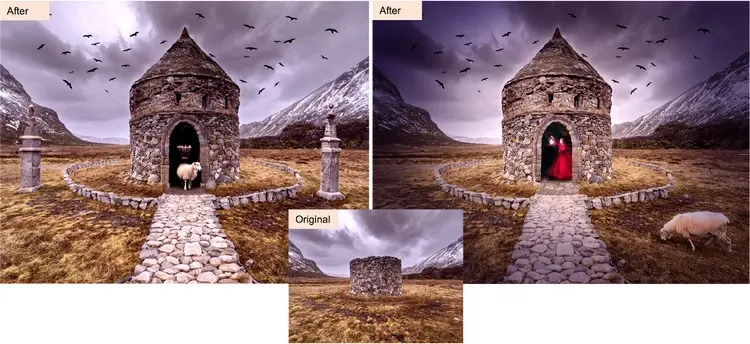
How to Use Generative Fill Inside Adobe Firefly
Adobe Firefly’s web application is beginner-friendly.
Step 1
Open Adobe Firefly.
Step 2
Choose:
Generative Fill
Step 3
Upload an image.
Step 4
Select an area.
Step 5
Enter your prompt.
Step 6
Generate variations.
Step 7
Download the final image.
50 Professional Firefly Prompt Examples
Product Photography
- Luxury perfume bottle on black marble with dramatic lighting
- Smartwatch on a white studio background
- Coffee cup beside a laptop
- Running shoes on a modern gym floor
- Leather wallet on a wooden desk
- Smartphone floating in a futuristic environment
- Cosmetics on a pink pastel background
- Jewelry displayed on velvet fabric
- Headphones on a minimalist desk
- Gaming mouse with RGB lighting
Social Media Prompts
- Modern Instagram workspace
- Influencer content creation studio
- Neon YouTube setup
- Podcast recording room
- Digital creator desk
- Travel blogger scene
- Fashion creator studio
- Cinematic office setup
- Cozy creator workspace
- Professional streaming setup
Marketing Prompts
- Futuristic business office
- Team collaboration meeting
- Modern startup headquarters
- Data visualization room
- Digital marketing workspace
- E-commerce office setup
- AI business dashboard
- Product launch stage
- Corporate presentation scene
- Professional seminar room
Real Estate Prompts
- Luxury living room
- Modern kitchen
- Rooftop garden
- Elegant bedroom
- Home office
- Swimming pool area
- Luxury apartment lobby
- Outdoor patio
- Contemporary dining room
- Family entertainment area
Creative Prompts
- Futuristic city
- Cyberpunk street
- Fantasy castle
- Mountain landscape
- Tropical island
- Underwater world
- Space station
- Desert landscape
- Winter village
- Futuristic AI laboratory
Real-World Creative Workflows
Product Photography
Before
Simple product photo
AI Workflow
- Remove background
- Generate a luxury environment
- Add shadows
- Add reflections
- Export final image
Result
Professional e-commerce image
Marketing Campaign
Before
Basic stock photo
AI Workflow
- Remove distractions
- Add branding elements
- Extend background
- Add text space
- Export ad creative
YouTube Thumbnail
Workflow
- Extend canvas
- Remove clutter
- Add dramatic lighting
- Add background effects
- Export
Blog Feature Image
Workflow
- Generate extra space
- Create title area
- Add objects
- Improve Composition
- Export
Generative Fill for Product Photography
This is one of the fastest-growing use cases.
Businesses use it to reduce studio costs.
Use Cases
- Amazon listings
- Shopify stores
- Etsy products
- Fashion brands
- Food photography
Generative Fill for Marketing Teams
Marketing departments can quickly create:
- Facebook ads
- Instagram ads
- Website banners
- Blog graphics
- Landing pages
Generative Fill for Designers
Designers use it for:
- UI mockups
- Presentations
- Mood boards
- Brand concepts
- Campaign assets
Generative Fill for Social Media Creators
Creators can produce:
- Reels covers
- Instagram posts
- Pinterest pins
- TikTok covers
- YouTube thumbnails
Expert Tips to Improve Results
Use Larger Selections
Give AI more context.
Use Specific Prompts
Avoid one-word prompts.
Generate Multiple Times
The first result is not always the best.
Use Reference Images
Maintain brand consistency.
Work in Layers
Always preserve the original image.
People Also Ask
A: Firefly Generative Fill Model is Adobe’s AI-powered image editing technology that adds, removes, replaces, or expands image content while maintaining realistic lighting, shadows, and perspective.
A: Adobe offers limited free access, but advanced features often require generative credits or a paid subscription.
A: Firefly is better for editing existing images and Photoshop workflows, while Midjourney is better for creating artistic images from scratch.
A: In many cases, yes. However, always verify Adobe’s latest commercial licensing policies before using AI-generated content for professional or business projects.
A: Yes. Firefly is deeply integrated into Photoshop and supports professional non-destructive editing workflows.
Conclusion
Picture something different. This tool changes the game for anyone making images – writers, ad teams, photo pros, companies. Not simply editing anymore. A new way of building what you see.
What stands out most is not just creating pictures. What really matters? Grasping the situation behind them.
Starting with AI-made images in Photoshop’s familiar workspace, Firefly helps people move through tasks more quickly without sacrificing quality. Instead of Switching Tools, everything fits together where you already edit. Speed grows because ideas turn into visuals right away. Quality remains strong because changes occur in a trusted environment. The whole process flows more smoothly when creation and adjustments link naturally.
Businesses spend less on creativity because of it.
More content gets made when marketers put it to work. It helps them move faster without extra effort, tagging along.
Most wins happen when effort meets method. Not by tapping a single command. Skillful prompting teams up with careful filtering. Editing shaped by experience makes the difference. Outcomes grow sharper only then.
Start thinking about 2026 – Firefly might just shape how you grow creatively with AI. For lasting skill-building, it stands out more than most options around. Learning it could change your approach without warning. This tool shows up where others fall short, quietly making space. Its role feels bigger each time you use it.
Start at ImageToolsAI.com to dig into AI-powered image tools, uncover new ways to shape prompts, then build skills that move with the changes in artificial intelligence. Explore each piece slowly – discover methods used by experts while adjusting your own approach along the way. Move through ideas one step at a time, matching how fast the field shifts. Stay close to real uses instead of theory. Learn what works now, drop what doesn’t.