Introduction
Have you ever taken the perfect photo only to realize the subject is in the wrong position?
Maybe a product blocks important text, a person stands too close to the edge of the frame, or your marketing image simply feels unbalanced. Traditionally, fixing these issues required advanced editing software and time-consuming manual work.
That’s where Canva Magic Grab changes the game.
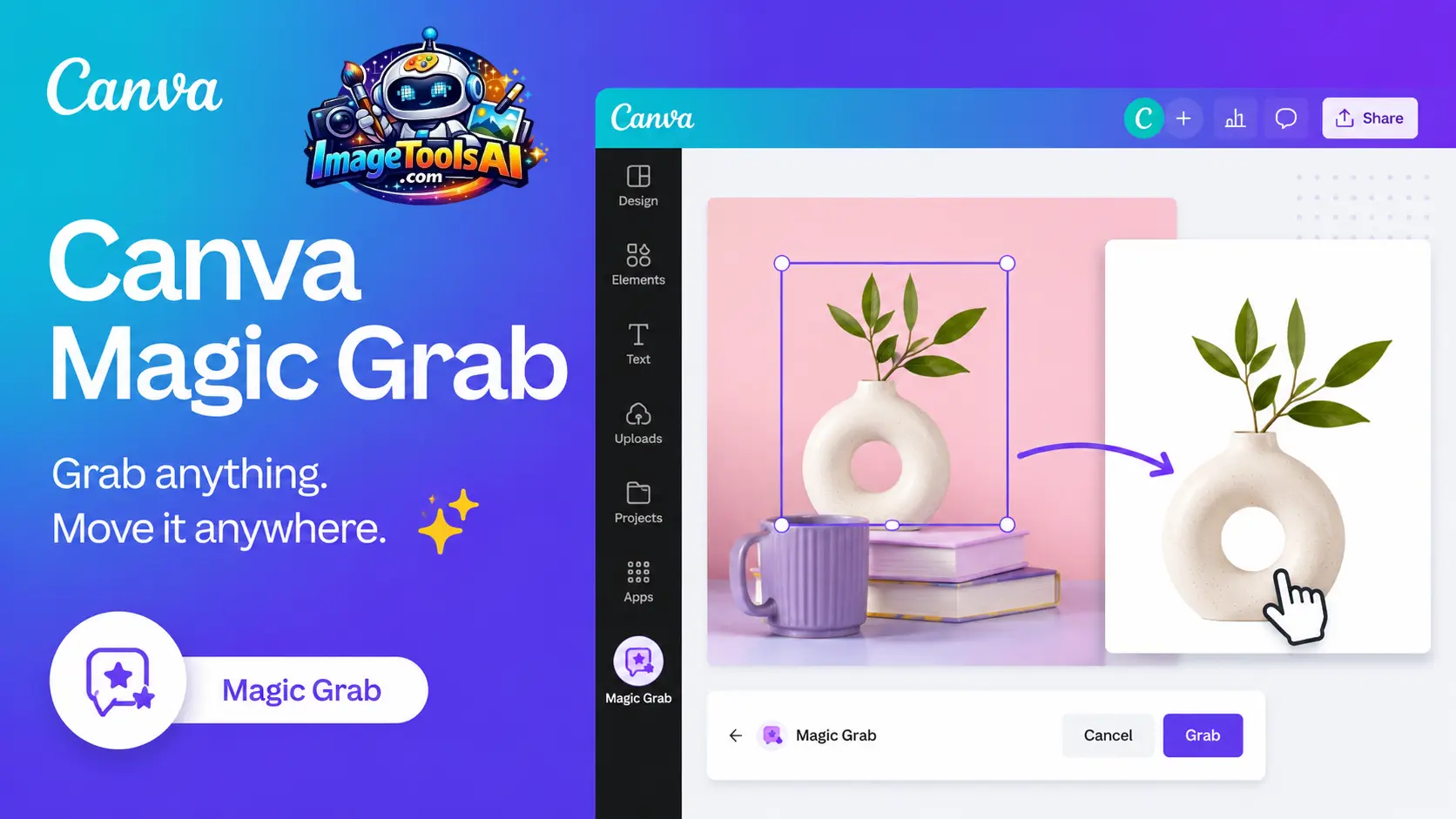
As part of Canva’s AI-powered Magic Studio, Magic Grab transforms subjects inside an image into editable elements. Instead of recreating designs from scratch, users can isolate people, products, objects, and visual elements, move them anywhere on the canvas, resize them, and improve the overall composition within seconds.
For content creators, marketers, ecommerce brands, educators, and small businesses, this capability can dramatically speed up design workflows while reducing the need for expensive photo editing software.
In this comprehensive guide, you’ll learn exactly how Canva Magic Grab works, the AI technology behind it, key features, practical workflows, real-world use cases, limitations, pricing considerations, and expert strategies for achieving professional results in 2026.
By the end, you’ll know whether Magic Grab deserves a place in your design toolkit and how to get the best possible results from Canva’s increasingly powerful AI ecosystem.
What Is Canva Magic Grab?
Quick Answer
Canva Magic Grab is an AI-powered photo editing tool that identifies the main subject inside an image, separates it from the background, and converts it into an editable element that can be moved, resized, or repositioned without manually cutting it out.
Think of it as turning a flat image into a partially editable design.
Instead of opening complex software and creating masks manually, Canva’s AI performs most of the work automatically.
Why Canva Created Magic Grab
Traditional image editing creates a common problem:
Once a photo is taken, every element is locked into place.
If a creator wants to:
- Move a product
- Reposition a person
- Improve visual balance
- Create space for text
- Optimize ad layouts
They often need advanced editing software.
Magic Grab solves this issue by giving users more control over existing photos.
Where Magic Grab Fits Inside Canva’s AI Ecosystem
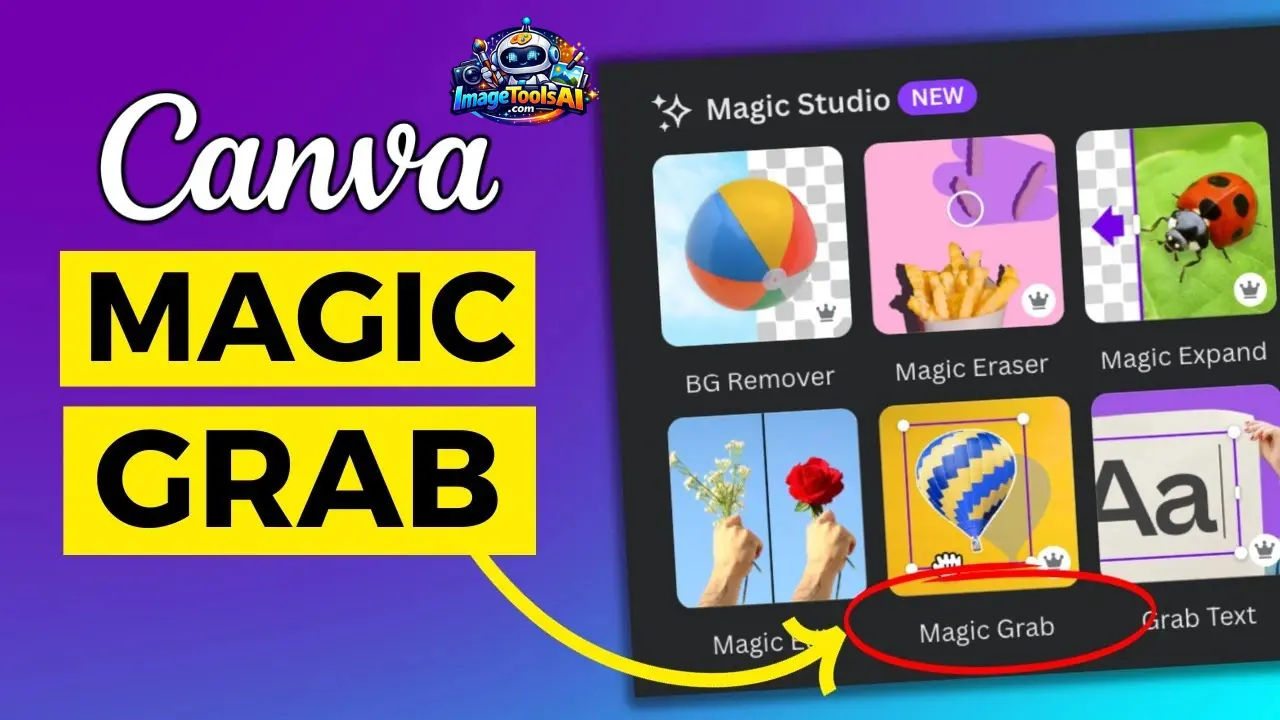
Magic Grab is part of Canva’s broader AI suite known as Magic Studio.
The ecosystem includes tools such as:
| Tool | Purpose |
| Magic Grab | Move image subjects |
| Magic Edit | Replace or modify objects |
| Magic Expand | Extend image boundaries |
| Magic Eraser | Remove unwanted objects |
| Background Remover | Delete backgrounds |
| Magic Design | Generate designs automatically |
| Magic Media | Generate AI images |
Each tool solves a different editing challenge.
Magic Grab specifically focuses on subject repositioning and composition optimization.
What Makes Magic Grab Different?
Most AI image editing tools fall into two categories:
Background Removal
The subject is extracted.
The background disappears.
You must rebuild the design manually.
Generative Editing
AI generates entirely new content.
The original image may change significantly.
Magic Grab’s Approach
Magic Grab sits between both approaches.
It:
Identifies the main subject
Separates it from the image
Preserves the overall photo
Reconstructs the area behind the object
Allows flexible repositioning
This creates a much faster workflow than traditional editing.
Mini Summary
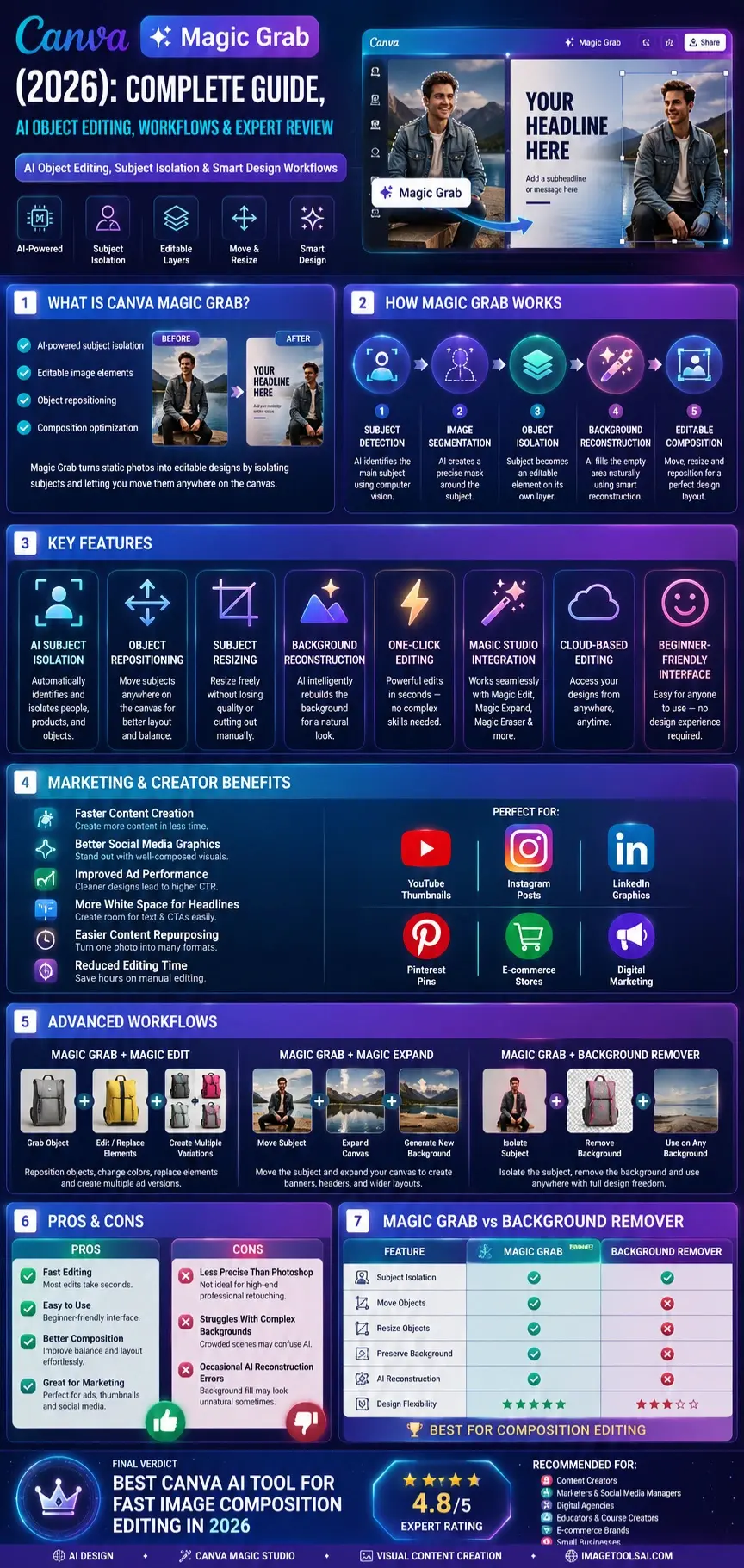
Canva Magic Grab transforms static photos into editable designs by isolating subjects and making them movable without requiring advanced editing skills.
How Canva Magic Grab Works
Most tutorials stop at explaining which button to click.
To truly understand Magic Grab, it’s useful to understand the AI technology powering it.
AI Subject Detection
The first stage involves object recognition.
Using computer vision models, Canva analyzes the image to determine:
- Primary subjects
- People
- Products
- Objects
- Visual focal points
The AI attempts to identify what users are most likely to want to edit.
For example:
A YouTube creator’s photo may result in the person’s body being selected.
A product image may cause the product itself to become the editable subject.
Object Segmentation
After detection, Canva performs image segmentation.
Segmentation means separating the subject from the surrounding environment.
The AI creates a detailed mask around:
- Hair
- Clothing
- Product edges
- Shapes
- Foreground elements
This process determines how accurately the subject can be extracted.
Subject Isolation
Once segmented, the object becomes its own editable layer.
At this stage, users can:
- Move the subject
- Resize it
- Reposition it
- Improve composition
- Create negative space
Without isolation, these actions would normally require complex editing software.
Background Reconstruction
This is where Magic Grab becomes especially powerful.
After removing the object from its original position, Canva uses generative AI techniques to reconstruct the exposed area.
The system analyzes:
- Colors
- Patterns
- Lighting
- Texture
- Scene context
Then, it attempts to fill missing areas naturally.
This process resembles content-aware fill technologies found in professional editing software.
Editable Composition
The final result is a partially editable image.
Users can now redesign the layout without reshooting photographs or manually rebuilding compositions.
The AI Technologies Behind Magic Grab
Computer Vision
Used for object recognition and scene understanding.
Semantic Segmentation
Separates subjects from backgrounds.
Context-Aware Reconstruction
Rebuilds missing image areas.
Machine Learning
Improves recognition accuracy over time.
Generative AI
Helps reconstruct hidden background areas.
Why Results Vary Between Images
Not all photos produce identical outcomes.
Magic Grab performs best when:
The subject is clearly visible
The background is relatively clean
Lighting is consistent
Performance may decline when:
Multiple overlapping subjects
Complex reflections
Dense backgrounds
Motion blur
Transparent objects
Real Example
Imagine a YouTube thumbnail photo.
Original image:
- Creator centered
- No room for headline text
Using Magic Grab:
- AI isolates the creator
- Creator moves left
- Space appears right
- Headline inserted
- Thumbnail becomes more clickable
Without AI, this process could require Photoshop expertise.
Mini Summary
Magic Grab combines object detection, segmentation, AI reconstruction, and editable layers to convert ordinary photos into flexible design assets within seconds.
Why Canva Magic Grab Matters in 2026
The way content is created has changed dramatically.
Just a few years ago, designers needed professional software and extensive training to manipulate images effectively.
Today, AI is democratizing design.
The Shift Toward Editable Media
Modern creators produce content across:
- YouTube
- TikTok
- E-commerce stores
- Blogs
- Advertising platforms
Every channel demands visual content.
The challenge isn’t creating images anymore.
The challenge is creating them quickly.
Magic Grab addresses this need by reducing editing friction and making professional-looking image adjustments accessible to almost anyone.
Growing Demand for Faster Content Production
Businesses now publish significantly more content than they did five years ago.
Marketing teams often need:
- Product ads
- Social posts
- Promotional banners
- Landing page visuals
- Video thumbnails
Creating custom photography for every campaign is unrealistic.
Magic Grab enables rapid adaptation of existing assets.
Why Google’s Visual Web Makes It More Important
Search engines are increasingly surfacing:
- Images
- Visual snippets
- Shopping results
- Video previews
Better image composition often leads to:
- Higher engagement
- Better click-through rates
- Improved user experience
- Stronger brand perception
Magic Grab helps optimize those visuals without expensive production costs.
Mini Summary
In 2026, visual content speed is a competitive advantage. Canva Magic Grab helps creators and businesses edit, adapt, and optimize images faster than traditional workflows.
Key Features of Canva Magic Grab
AI Subject Isolation
Automatically extracts the primary object from a photo.
Useful for:
- People
- Products
- Objects
- Marketing assets
Object Repositioning
Move subjects anywhere within the design.
Ideal for improving balance and layout.
Subject Resizing
Scale objects larger or smaller without manually cutting them out.
Background Reconstruction
AI fills the original area after an object is moved.
This eliminates many manual retouching tasks.
Fast Editing Workflow
Most edits take seconds rather than hours.
Beginner-Friendly Interface
No advanced design knowledge required.
Integration With Magic Studio
Works alongside:
- Magic Edit
- Magic Expand
- Magic Eraser
- Background Remover
Creating powerful AI-assisted workflows.
Cross-Platform Accessibility
Available across Canva’s ecosystem, including desktop and supported mobile experiences.
Feature Overview Table
| Feature | Benefit |
| Subject Isolation | Editable image elements |
| Object Repositioning | Better composition |
| Resizing | Flexible layouts |
| AI Reconstruction | Cleaner edits |
| One-Click Editing | Faster workflow |
| Magic Studio Integration | Expanded capabilities |
| Beginner Friendly | No design expertise needed |
| Cloud-Based Editing | Accessible anywhere |
How to Use Canva Magic Grab (Step-by-Step Tutorial)
One reason Canva Magic Grab has become popular is its simplicity. Unlike traditional image editing software, you don’t need layers, masks, or advanced photo manipulation skills.
Step 1: Upload Your Image
- Open Canva.
- Create a new design or open an existing project.
- Upload your photo.
- Place it on the canvas.
Best Results Tip
Choose images with:
- Clear subjects
- Good lighting
- Minimal motion blur
- Strong contrast between the subject and the background
These factors improve AI detection accuracy.
Step 2: Select the Image
Click on the photo you want to edit.
Canva will display editing options in the toolbar.
Step 3: Open Edit Photo
Select Edit Photo.
This opens Canva’s AI editing panel, where Magic Studio tools are available.
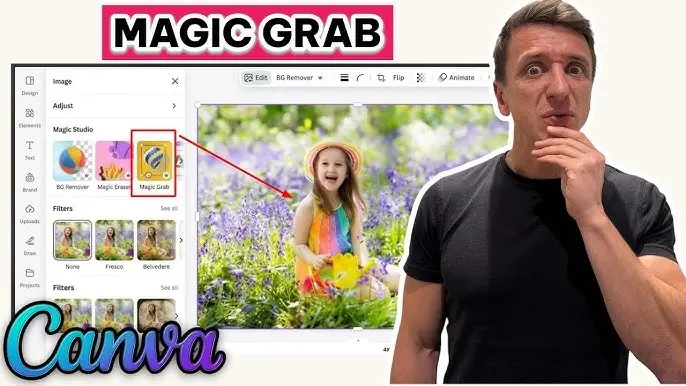
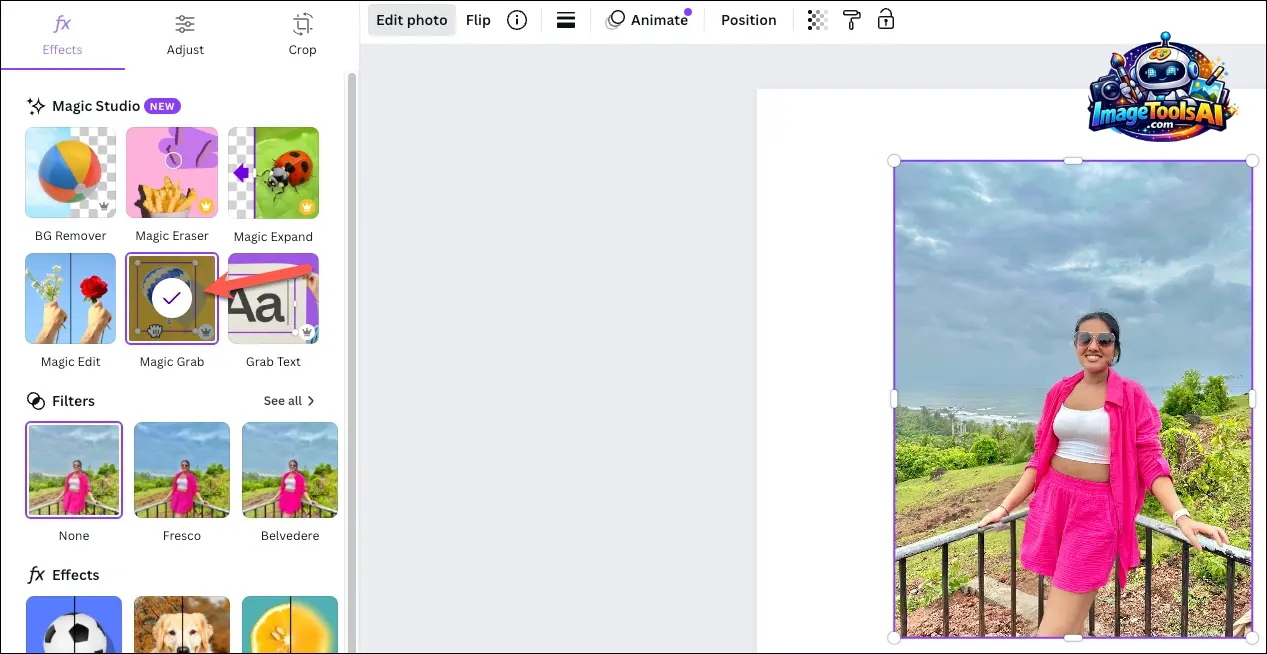
Step 4: Choose Magic Grab
Navigate to Magic Studio and select Magic Grab.
The AI will begin analyzing the image.
Step 5: Allow AI Processing
Magic Grab scans:
- Subject boundaries
- Visual focus areas
- Background textures
- Scene composition
Processing usually takes only a few seconds.
Step 6: Edit the Subject
Once the object becomes editable, you can:
- Move it
- Resize it
- Rotate it
- Reposition it
This is where most creators dramatically improve image composition.
Step 7: Optimize the Layout
Consider:
- Text placement
- Visual hierarchy
- White space
- Branding elements
The goal isn’t just moving an object—it’s creating a better design.
Step 8: Export Your Design
After editing:
- Click Share
- Download
- Choose format:
- PNG
- JPG
Your edited image is now ready for publication.
Quick Workflow Summary
| Step | Action |
| 1 | Upload image |
| 2 | Select photo |
| 3 | Open Edit Photo |
| 4 | Choose Magic Grab |
| 5 | AI detects the subject |
| 6 | Move or resize object |
| 7 | Improve composition |
| 8 | Export design |
Benefits of Canva Magic Grab for Creators & Businesses
Magic Grab is not simply a design feature.
It solves genuine productivity problems.
Content Creators
Creators constantly produce:
- Thumbnails
- Blog graphics
- Social content
- Promotional assets
Magic Grab speeds up editing while improving design quality.
Key Benefits
Faster workflow
Better visual storytelling
Improved engagement
Less editing time
Social Media Managers
Marketing teams need content quickly.
Instead of creating new photos for every campaign, they can repurpose existing assets.
Benefits include:
- Faster campaign production
- Better ad creatives
- Reduced design costs
Agencies
Agencies often manage multiple clients simultaneously.
Magic Grab helps:
- Reduce production time
- Improve client deliverables
- Scale creative output
Small Businesses
Many small businesses lack dedicated designers.
Magic Grab enables professional-looking edits without hiring expensive specialists.
Educators
Teachers and course creators can:
- Improve presentations
- Create learning materials
- Build educational graphics
without complex software.
Mini Summary
Magic Grab creates value by reducing editing complexity while improving content quality across multiple industries.
Canva Magic Grab for Social Media Marketing
Social media success often depends on visual composition.
Even great content can underperform if the design feels cluttered.
Instagram Posts
Move subjects to create:
- Better balance
- Cleaner branding
- Stronger call-to-actions
Facebook Ads
Ad space is limited.
Magic Grab helps create room for:
- Offers
- Discounts
- Promotional messages
without obscuring the product.
Pinterest Pins
Pinterest favors highly visual content.
Repositioning subjects can:
- Improve readability
- Increase saves
- Boost click-through rates
LinkedIn Graphics
Professional content benefits from:
- Clean layouts
- Better spacing
- Improved visual hierarchy
Magic Grab simplifies these adjustments.
TikTok Promotion Graphics
Creators often repurpose images for TikTok campaigns.
Magic Grab helps adapt content for multiple formats.
Social Media Marketing Benefits
| Benefit | Impact |
| Faster content creation | More posting consistency |
| Better composition | Higher engagement |
| Improved branding | Stronger recognition |
| Easier repurposing | Greater efficiency |
Advanced Canva Magic Grab Workflows
Most beginners stop after moving an object.
Professionals combine Magic Grab with other AI tools.
Magic Grab + Magic Edit
Use Magic Grab to reposition an object.
Then use Magic Edit to:
- Replace elements
- Modify objects
- Create variations
Example
Move product → Change product color → Create multiple ad versions.
Magic Grab + Magic Expand
One of the most powerful Canva combinations.
Process
- Move subject
- Expand canvas
- Generate a new background area
Result
Ideal for:
- YouTube banners
- Website headers
- Social graphics
Magic Grab + Background Remover
Sometimes, creators want complete subject flexibility.
Process:
- Isolate object
- Remove background
- Create custom layouts
Marketing Campaign Production
A single photo can become:
- Instagram post
- Facebook ad
- Pinterest graphic
- LinkedIn image
- Website banner
using Magic Grab and Canva templates.
Real-World Business Applications
Digital Marketing Agencies
Benefits:
- Faster production
- Better client deliverables
- Lower editing costs
SaaS Companies
Use Magic Grab for:
- Landing pages
- Product announcements
- Feature promotions
E-commerce Brands
Use cases include:
- Product ads
- Catalogs
- Sales campaigns
Bloggers
Improve:
- Featured images
- Pinterest graphics
- Content marketing visuals
Online Course Creators
Enhance:
- Course covers
- Educational graphics
- Presentation slides
Canva Magic Grab Pros and Cons
No AI tool is perfect.
Understanding both strengths and weaknesses helps set realistic expectations.
Pros
Extremely beginner-friendly
No Photoshop knowledge required.
Fast Editing
Most edits take seconds.
Improves Visual Composition
Makes it easy to reposition subjects.
Works Inside Canva
No need to switch platforms.
Great for Marketing Content
Perfect for ads, thumbnails, and social posts.
AI-Powered Workflow
Reduces manual editing effort.
Time Saving
Can replace lengthy editing tasks.
Cons
Not Pixel-Perfect
Photoshop still offers more precision.
Struggles With Complex Backgrounds
Crowded scenes can confuse AI.
Subject Detection Isn’t Always Accurate
Multiple objects may cause issues.
Limited Fine Control
Professional retouchers may find controls restrictive.
Background Reconstruction Can Occasionally Look Artificial
Especially when moving subjects over large distances.
Quick Verdict
Pros outweigh cons for most creators, marketers, and small businesses.
For advanced commercial retouching, professional tools still have advantages.
Canva Magic Grab vs Background Remover
Many users confuse these tools.
They actually serve different purposes.
| Feature | Magic Grab | Background Remover |
| Isolates Subject | Yes | Yes |
| Move Subject | Yes | No |
| Resize Subject | Yes | No |
| Background Preserved | Yes | No |
| AI Reconstruction | Yes | No |
| Layout Editing | Excellent | Limited |
| Design Flexibility | High | Moderate |
Which Should You Choose?
Use Background Remover when:
- You need a transparent background
- Creating cutout graphics
- Building layered designs
Use Magic Grab when:
- You want to reposition subjects
- Improve composition
- Create space for text
- Keep the original image intact
Winner
For composition editing, Magic Grab wins.
For transparent cutouts, Background Remover wins.
People Also Ask
Yes. Magic Grab can identify and isolate people, allowing you to reposition them while Canva attempts to reconstruct the original background.
Not exactly. Unlike Background Remover, Magic Grab keeps the background intact while turning the subject into an editable element.
Many Canva AI tools are available on desktop and mobile platforms, though availability may vary by device, app version, and subscription plan.
For speed and ease of use, many creators prefer Magic Grab. For advanced editing and professional retouching, Photoshop remains more powerful.
Yes. Product repositioning is one of the tools’ strongest use cases, making it popular among e-commerce sellers and market
Conclusion:
Canva Magic Grab has become one of the most practical AI-powered editing tools available to creators, marketers, educators, agencies, and e-commerce businesses. By transforming photo subjects into editable design elements, it removes many of the barriers traditionally associated with image editing.
Instead of learning complex masking techniques or purchasing expensive software, users can reposition people, products, and objects in seconds while maintaining a natural-looking composition. This makes Magic Grab especially valuable for social media graphics, YouTube thumbnails, marketing campaigns, Product Photography, website banners, and branded content.
While it doesn’t replace Photoshop for high-end professional editing, it excels in what most modern creators actually need: speed, simplicity, and flexibility.
For anyone already using Canva’s ecosystem, Magic Grab is one of the strongest reasons to explore Magic Studio’s AI capabilities. Combined with Magic Edit, Magic Expand, and Background Remover, it creates a powerful workflow that can dramatically accelerate content production while improving visual quality.
If you’re looking for a fast, beginner-friendly way to improve image composition without advanced editing skills, Canva Magic Grab is absolutely worth trying in 2026.