Introduction
Out of nowhere, tools powered by artificial intelligence handle what once needed expert programs. Hours spent carefully erasing backdrops? Not anymore. Masking tricks that felt like magic just a few years ago now sit quietly in the past. Machines learn patterns, detect edges, deliver clean results – fast. What demanded skill and time now happens almost instantly .
One click is all it takes to pull a subject from its surroundings using Canva’s smart tool. Picture this: your product shots, suddenly cleaner, sharper, ready for storefronts online. Social posts gain clarity when distractions fade behind focused visuals. Even thumbnail designs for videos snap into place without hassle. What once took skill now happens fast, no training needed. Editing that feels like magic? It’s just built-in help, working quietly. Anyone can shape polished looks – even on the first try.
Start by looking at what Canva’s background remover actually does. This tool runs on artificial intelligence, adjusting images fast without manual edits. One moment you have a photo, next the backdrop vanishes – clean edges included. It costs nothing extra if you already pay for Canva Pro, though free users get limited access. Designers swap scenes behind products or portraits within seconds. Teachers crop out distractions from visuals meant for students. Real estate folks tidy up property shots before sharing online. Yet it stumbles sometimes – hairs, fine details, semi-transparent layers cause hiccups. Other tools like Adobe Express or Fotor offer similar tricks but demand sharper learning curves. Practice helps. Zooming in close while checking output reduces mistakes later. Some prefer stacking small fixes instead of one full removal.
What Is Canva AI Background Remover?
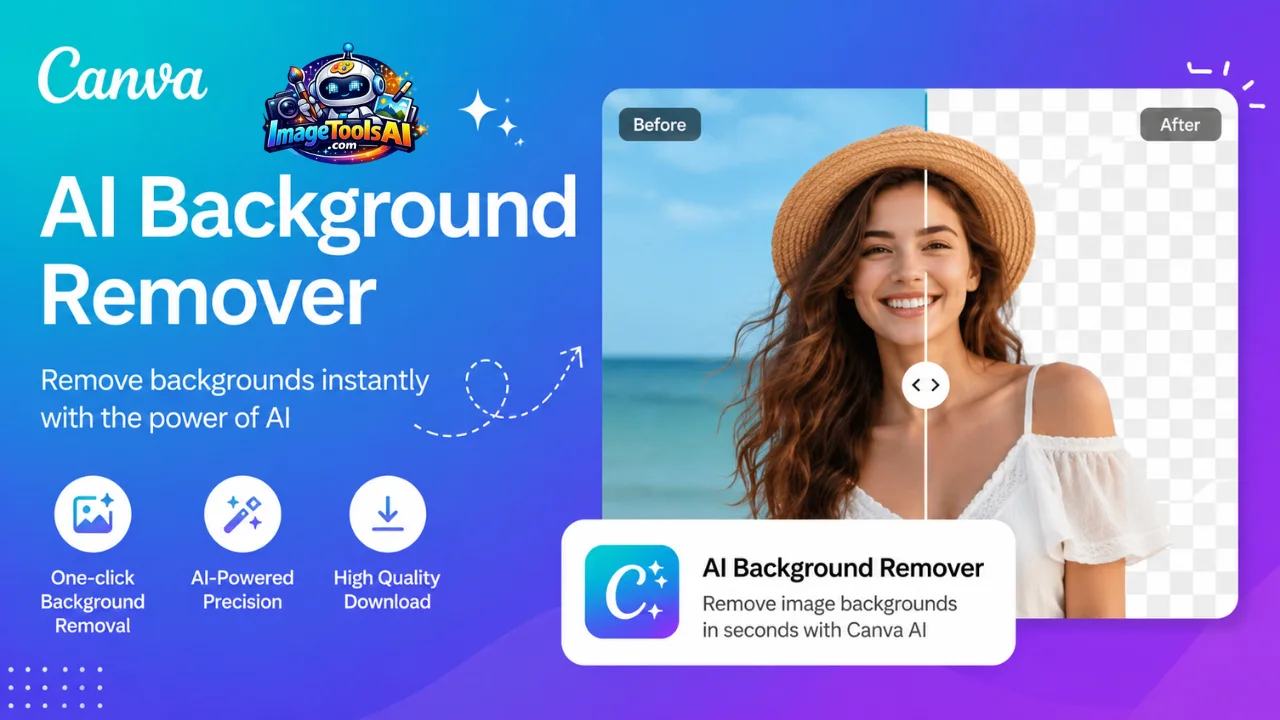
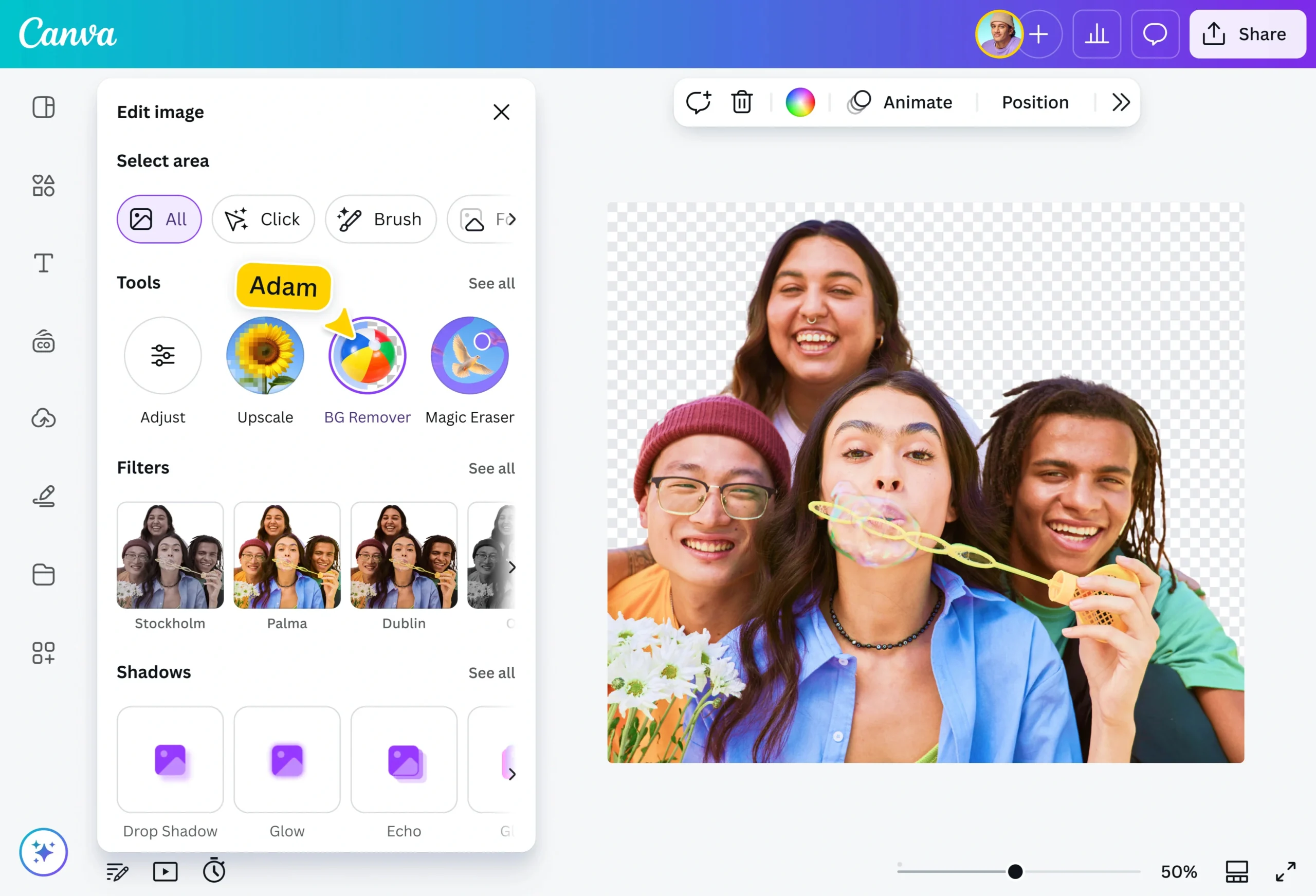
Canva AI Background Remover is an artificial intelligence-powered editing feature that automatically detects the main subject in an image and removes the surrounding background.
Instead of manually selecting objects pixel by pixel, the AI analyzes the image and creates an automatic mask around the detected subject.
The tool is capable of identifying:
- People
- Products
- Animals
- Vehicles
- Food items
- Logos
- Everyday objects
The result is a transparent background image that can be placed on new designs, presentations, websites, advertisements, or marketing materials.
Quick Definition
Canva AI Background Remover is an automated image editing tool that uses machine learning and computer vision technology to separate foreground subjects from image backgrounds.

Why Canva AI Background Remover Matters in 2026
The demand for visual content continues to grow rapidly.
Businesses need:
- Product photos
- Social media graphics
- Advertising creatives
- Marketing materials
Creators need:
- Thumbnails
- Profile pictures
- Brand assets
- Promotional graphics
Traditional editing software often requires significant expertise. Canva removes that barrier by making professional-looking image editing accessible to non-designers.
Several trends are driving its popularity:
AI-Powered Content Creation
AI is becoming a core component of creative workflows.
Users now expect:
- Faster editing
- Automated design assistance
- Intelligent image processing
Canva’s background remover aligns perfectly with these expectations.
Growth of eCommerce
Online stores require clean product photography.
Transparent backgrounds help:
- Improve product presentation
- Increase visual consistency
- Meet marketplace requirements
Social Media Competition
Attention spans are shorter than ever.
High-quality visuals help content stand out on:
- TikTok
Removing distracting backgrounds often improves visual impact dramatically.
How Canva AI Background Remover Works
Many users click the button without understanding what happens behind the scenes.
In reality, Canva uses sophisticated AI image-processing systems.
AI Subject Detection
The first step is identifying the primary subject.
The AI analyzes:
- Shapes
- Objects
- Faces
- Edges
- Visual patterns
It predicts which object the user most likely wants to keep.
For example:
If a photo contains a person standing in front of a city skyline, the AI usually recognizes the person as the primary subject.
Mini Summary
AI subject detection is responsible for determining what stays and what gets removed.
Computer Vision Technology
Computer vision allows machines to understand images similarly to how humans interpret visual information.
Canva’s AI evaluates:
- Pixel relationships
- Color differences
- Object boundaries
- Texture variations
This helps the system distinguish foreground from background.
Without computer vision, automatic background removal would not be possible.
Foreground Segmentation
Foreground segmentation is the process of separating a subject from its environment.
The AI essentially creates two categories:
Foreground
The object to keep.
Background
Everything to remove.
This segmentation process happens within seconds.
Modern AI models perform millions of calculations to create accurate masks around subjects.
Edge Refinement Algorithms
Accurate edges are critical.
Poor edge detection creates:
- Jagged outlines
- Missing details
- Artificial-looking cutouts
Canva applies edge refinement algorithms to improve accuracy around:
- Hair
- Clothing
- Product edges
- Fur
- Transparent elements
The goal is to create a natural-looking result.
Hair and Fur Detection
Hair is one of the most difficult challenges in image editing.
Individual strands can be difficult to separate from complex backgrounds.
Canva’s AI attempts to recognize:
- Hair textures
- Fine strands
- Fur patterns
- Feather details
Although results are often impressive, highly detailed hair remains one of the most challenging scenarios for any AI background remover.
Key Features of Canva AI Background Remover
The popularity of Canva’s tool comes from its simplicity and integration within a larger design ecosystem.
One-Click Background Removal
Users can remove backgrounds in seconds.
No advanced editing skills are required.
This dramatically reduces editing time compared to traditional software.
Automatic Subject Isolation
The AI automatically identifies the primary subject.
This eliminates manual selection work.
Transparent PNG Export
Images can be exported with transparent backgrounds.
This is essential for:
- Branding
- Product photography
- Website design
- Marketing graphics
Manual Erase and Restore Tools
Users can refine results manually when needed.
These tools help fix:
- Missed edges
- Incorrect selections
- Complex image details
Mobile Editing Support
Background removal works on mobile devices, making quick edits possible while traveling or working remotely.
Integrated Design Workflow
One major advantage over standalone tools is that Canva allows users to continue designing immediately after removing the background.
You can:
- Add text
- Insert graphics
- Create presentations
- Build advertisements
without leaving the platform.
Benefits for Creators and Businesses
The biggest reason Canva’s AI Background Remover continues to grow is its practical value.
Content Creators
- Better thumbnails
- Faster content production
- Professional branding
Businesses
- Improved product images
- Consistent visual identity
- Faster marketing asset creation
Freelancers
- Reduced editing time
- Faster project delivery
- Increased productivity
Students
- Presentation graphics
- Academic projects
- Portfolio development
Marketing Teams
- Campaign visuals
- Social media creatives
- Advertising assets
Canva AI Background Remover Pricing
Pricing is an important factor when comparing Canva with dedicated background removal tools.
The good news is that Canva includes background removal as part of a broader creative ecosystem rather than charging solely for background editing.
Canva Pricing Overview
| Plan | Best For | Background Remover | Design Tools |
| Free | Beginners | Limited/Varies | Basic |
| Canva Pro | Individuals | Yes | Full Access |
| Canva Teams | Businesses | Yes | Team Features |
| Enterprise | Large Organizations | Yes | Enterprise Controls |
Free Plan
Ideal for:
- Students
- Hobby users
- Casual creators
Benefits:
- Basic design creation
- Limited AI functionality
- Thousands of templates
Limitations:
- Advanced editing restrictions
- Limited premium assets
- Fewer automation features
Canva Pro
Best for:
- Freelancers
- Content creators
- Marketers
- Online businesses
Benefits include:
- AI Background Remover
- Premium assets
- Brand Kit
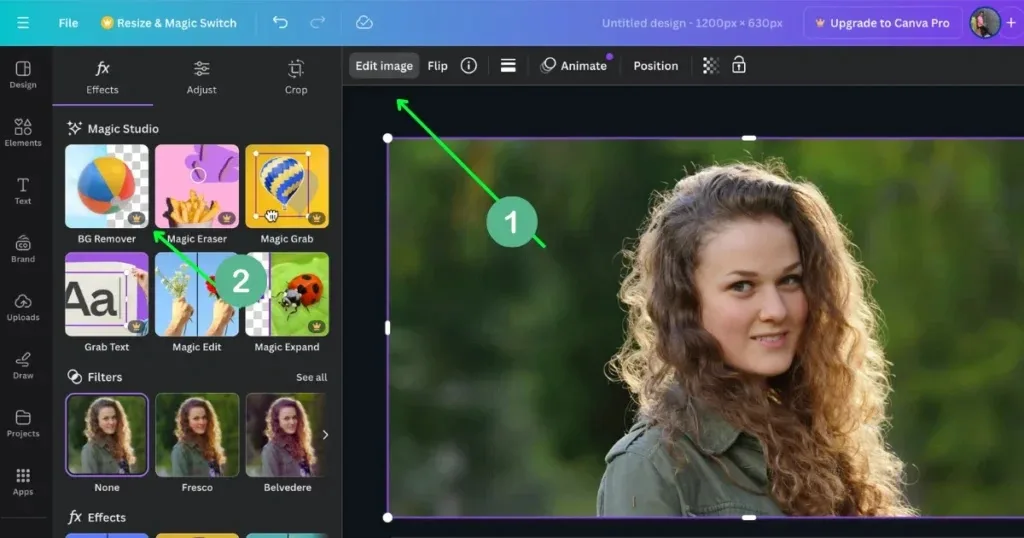
- Magic Studio tools
- Advanced exports
For most users, Canva Pro offers the best balance between cost and functionality.
Canva Teams
Designed for collaborative workflows.
Useful for:
- Marketing departments
- Agencies
- Remote teams
- Growing businesses
Additional features include:
- Shared assets
- Team collaboration
- Workflow approvals
- Brand consistency controls
Enterprise Solutions
Large organizations may require:
- Security controls
- User management
- SSO integrations
- Compliance features
Enterprise plans address these needs while maintaining access to Canva’s AI editing ecosystem.
Mini Summary
For occasional use, free access may be enough. For frequent background removal and professional design work, Canva Pro is usually the most practical option.
Best Use Cases for Canva AI Background Remover
Background removal isn’t just about deleting unwanted scenery.
It plays a critical role across multiple industries and content creation workflows.
Let’s explore where Canva delivers the most value.
eCommerce Product Photography
Product photos directly influence buying decisions.
Customers expect:
- Clean backgrounds
- Professional presentation
- Consistent branding
Canva allows sellers to quickly transform ordinary photos into marketplace-ready images.
Benefits
- Faster image preparation
- Consistent product catalogs
- Improved visual professionalism
- Better customer perception
Common Product Categories
- Electronics
- Fashion
- Beauty products
- Home décor
- Handmade goods
- Accessories
Amazon Listing Images
Amazon sellers often need clean white backgrounds.
Canva helps users:
- Remove distracting backgrounds
- Create compliant product images
- Build infographics
- Design comparison graphics
Why It Matters
Professional images improve:
- Click-through rates
- Customer trust
- Product visibility
- Conversion potential
Shopify Product Images
Shopify store owners benefit from consistent branding.
Background removal allows products to:
- Appear cleaner
- Match store aesthetics
- Stand out visually
Many successful Shopify brands use transparent PNG images layered onto custom website backgrounds.
Etsy Store Photos
Etsy sellers often rely on visual storytelling.
Canva helps by enabling:
- Product isolation
- Lifestyle mockups
- Promotional graphics
- Seasonal marketing materials
This is particularly valuable for:
- Handmade products
- Digital downloads
- Print-on-demand businesses
LinkedIn Headshots
Professional networking depends heavily on first impressions.
A clean headshot can significantly improve:
- Profile credibility
- Personal branding
- Recruiter engagement
With Canva, users can:
- Remove distracting backgrounds
- Replace backgrounds
- Create branded profile photos
Personal Branding
Creators increasingly need a recognizable visual identity.
Background removal supports:
- Website graphics
- Speaker bios
- Author pages
- Online portfolios
- Media kits
Professional visuals strengthen personal brands and improve audience trust.
YouTube Thumbnails
YouTube is highly competitive.
Strong thumbnails often determine whether someone clicks a video.
Background removal allows creators to:
- Isolate faces
- Emphasize emotions
- Create visual contrast
- Increase click potential
Many successful creators build entire thumbnail workflows around subject isolation.
Social Media Content
Background-free images perform exceptionally well across platforms.
Popular applications include:
- Product launches
- Promotions
- Reels covers
- Ads
- Business posts
- Event promotions
- Pins
- Product graphics
- Blog promotion
TikTok
- Cover images
- Promotional content
Marketing Materials
Marketing teams use Canva Background Remover for:
- Brochures
- Flyers
- Presentations
- Digital ads
- Landing pages
The ability to instantly isolate subjects speeds up production dramatically.
inside the same platform.
This integration saves significant time for creators and businesses.
Real-World Industries Using Canva Background Removal
Industries increasingly adopting AI image editing include:
Retail
Product image optimization.
Education
Presentation design.
Real Estate
Property marketing materials.
Healthcare Marketing
Visual content creation.
Hospitality
Promotional graphics.
Travel
Destination marketing.
Freelance Design
Client projects.
Influencer Marketing
Content production.
The versatility of Canva’s ecosystem makes it useful across nearly every content-driven industry.
Canva AI Background Remover vs Remove.bg
One of the most common comparisons is Canva versus Remove.bg.
Both tools use AI to automatically remove backgrounds, but they serve slightly different audiences.
Quick Comparison
| Feature | Canva AI Background Remover | Remove.bg |
| Background Removal | Yes | Yes |
| Design Tools | Extensive | Limited |
| Templates | Yes | No |
| Brand Kit | Yes | No |
| Social Media Design | Yes | Limited |
| Team Collaboration | Yes | Limited |
| Standalone Background Removal | Good | Excellent |
| Complete Design Platform | Excellent | No |
When Canva Wins
Choose Canva if you need:
- Background removal plus design creation
- Marketing materials
- Social media graphics
- Presentations
- Brand management
When Remove.bg Wins
Choose Remove.bg if you need:
- High-volume background removal
- Dedicated image processing
- API integrations
- Fast bulk workflows
Verdict
Remove.bg is a specialist.
Canva is an all-in-one creative platform.
For most creators and small businesses, Canva delivers greater overall value because the editing workflow continues after the background is removed.
Canva AI Background Remover vs Adobe Express
Adobe Express combines Adobe’s imaging expertise with beginner-friendly editing tools.
Comparison Table
| Feature | Canva | Adobe Express |
| Ease of Use | Excellent | Very Good |
| Learning Curve | Low | Moderate |
| Templates | Extensive | Strong |
| AI Editing | Excellent | Excellent |
| Team Collaboration | Strong | Moderate |
| Creative Ecosystem | Very Strong | Strong |
| Beginner Friendly | Excellent | Good |
Canva Advantages
- Easier interface
- Larger template ecosystem
- Better beginner experience
- Faster workflow adoption
Adobe Express Advantages
- Adobe ecosystem integration
- Strong image processing heritage
- Creative Cloud compatibility
Verdict
Beginners often prefer Canva.
Professionals already invested in Adobe products may prefer Adobe Express.
Image Turns White After Removal
This issue often confuses.
The background may actually be transparent.
Many users mistake Canva’s white canvas for a white background.
Fix
Export as:
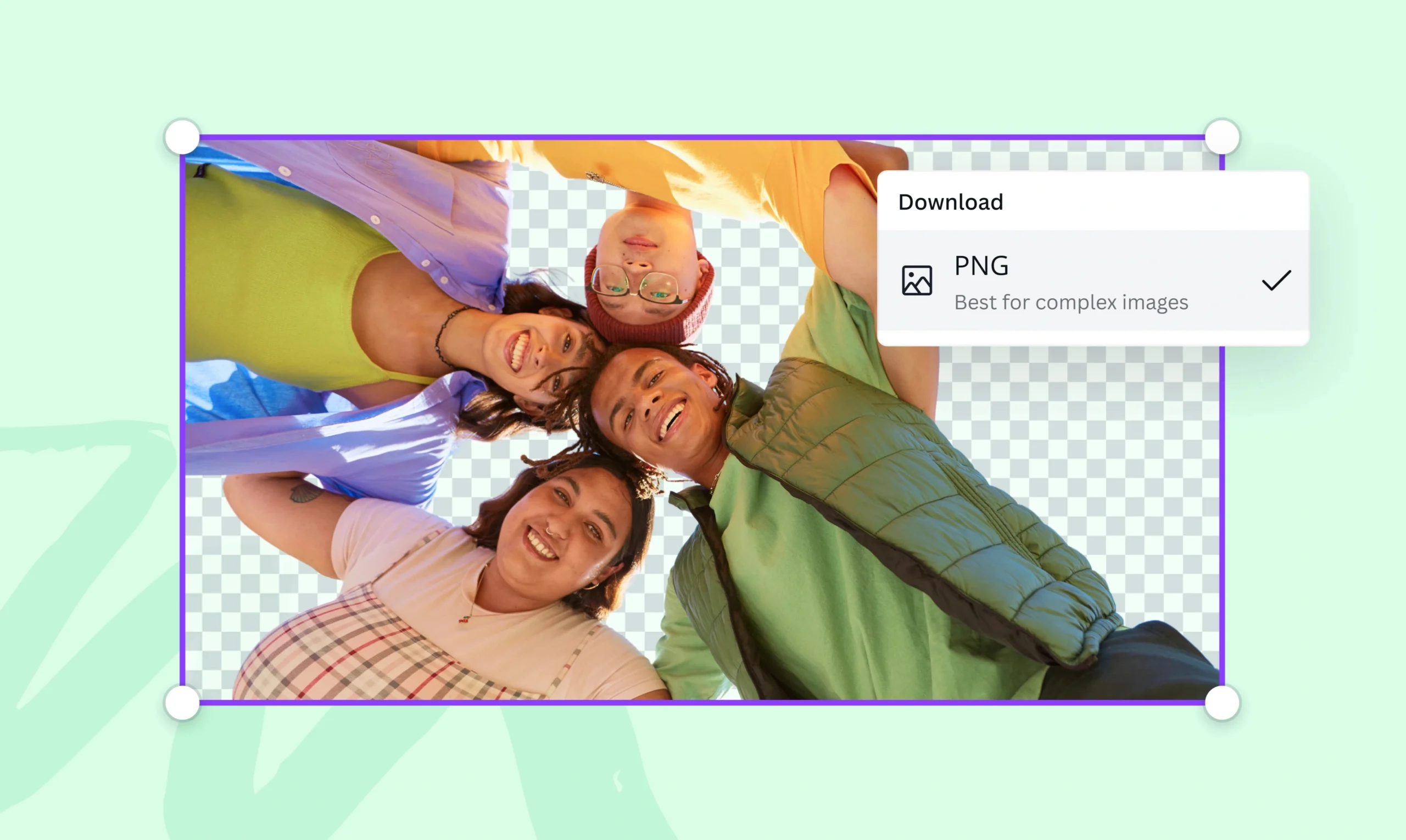
- PNG
- Transparent Background enabled
Then test the image elsewhere.
Download Errors
Common reasons include:
- Internet interruptions
- Browser conflicts
- Temporary platform issues
Solutions
- Retry export
- Clear browser cache
- Use another browser
- Reduce file complexity
Missing Transparency
Users sometimes forget to enable transparency during export.
Correct Export Settings
Format:
PNG
Transparency:
Enabled
Without transparency enabled, the image may appear with a white background.
Export Problems
Large projects sometimes experience:
- Slow exports
- Failed downloads
- Rendering delays
Best Practices
- Simplify designs
- Reduce unnecessary elements
- Export in smaller batches
Inaccurate Subject Detection
Sometimes Canva selects the wrong object.
This commonly occurs when:
- Multiple people appear
- Subjects overlap
- Backgrounds are extremely busy
Solution
Use manual refinement tools to improve accuracy.
Expert Tips for Better Results
Professional users follow several best practices to maximize AI performance.
Use High-Resolution Images
Higher-quality images produce more accurate results.
Benefits include:
- Better edge detection
- Improved subject recognition
- Cleaner exports
Increase Subject Contrast
The clearer the separation between subject and background, the easier the AI can identify boundaries.
Good Example
Person wearing dark clothing against a light background.
Difficult Example
A person wearing camouflage in a forest.
Avoid Busy Backgrounds
Simple backgrounds dramatically improve accuracy.
Whenever possible:
- Use clean backdrops
- Reduce clutter
- Improve lighting
before taking photos.
Refine Edges Manually
Never assume AI output is perfect.
Inspect:
- Hair
- Hands
- Product corners
- Accessories
before exporting.
Export as PNG
PNG remains the preferred format for transparent images.
Ideal for:
- Websites
- Branding
- Marketing assets
- Product photography
Combine with Other Canva AI Tools
Power users often combine Background Remover with:
- Magic Eraser
- Magic Edit
- Magic Expand
- Brand Kit
- AI Design Tools
This creates a more advanced creative workflow.
Common Mistakes to Avoid
Many beginners unintentionally reduce output quality.
Avoid these mistakes.
Using Low-Quality Photos
Poor source images create poor results.
Ignoring Edge Cleanup
Small imperfections become noticeable in professional projects.
Exporting in JPEG
JPEG removes transparency.
PNG is usually the better choice.
Overprocessing Images
Excessive editing can create unnatural visuals.
Expecting Perfect Results Every Time
AI continues improving, but no system is flawless.
Always inspect final outputs carefully.
Canva AI Ecosystem and Future Developments
AI-powered image editing is evolving rapidly, and Canva has positioned itself as one of the leading platforms in this space.
Background removal is no longer a standalone feature. It is increasingly becoming part of a larger AI-assisted creative workflow.
Recent developments across Canva’s AI ecosystem include:
- AI-powered design generation
- Intelligent photo editing
- AI writing assistance
- Image expansion tools
- Object replacement features
- Brand automation tools
- Automated content creation workflows
As AI models become more sophisticated, future versions of Canva Background Remover will likely offer:
More Accurate Subject Detection
Future AI systems may better understand:
- Multiple subjects
- Overlapping objects
- Complex Scenes
- Crowded backgrounds
Improved Hair and Fur Recognition
Fine details remain one of the biggest challenges.
Advances in segmentation models are expected to significantly improve:
- Hair masking
- Fur extraction
- Feather preservation
- Edge refinement
Better Transparent Object Handling
Transparent materials such as:
- Glass
- Plastic
- Water
- Reflective surfaces
They are likely to become easier for AI systems to process accurately.
AI-Assisted Scene Editing
Rather than simply removing backgrounds, future workflows may allow users to:
- Replace environments automatically
- Generate realistic shadows
- Match lighting conditions
- Create complete AI-generated scenes
Smarter Design Automation
Canva’s long-term vision appears focused on reducing repetitive design work through AI-assisted automation.
For businesses, this could mean:
- Faster campaign creation
- Consistent branding
- Automated visual asset production
Privacy, Safety, and Commercial Use
Before using any AI image editing tool professionally, users should understand privacy and commercial usage considerations.
Data Privacy Considerations
Whenever images are uploaded to cloud-based platforms, users should review:
- Privacy policies
- Data processing terms
- Storage policies
- User rights
Businesses handling sensitive content should pay particular attention to compliance requirements.
Commercial Usage
Many users rely on Canva for:
- Marketing campaigns
- Client projects
- eCommerce stores
- Social media management
Commercial rights may vary depending on:
- Subscription plan
- Asset licensing
- Third-party content usage
Always verify current licensing information through Canva’s official documentation before using assets commercially.
Brand Safety
Background removal can improve professionalism, but should not be used to create misleading representations of products or services.
Best practice:
- Maintain authenticity
- Avoid deceptive image manipulation
- Represent products accurately
This helps maintain customer trust and brand credibility.
Pros and Cons Summary
Pros
Extremely easy to use
Fast AI processing
Integrated design ecosystem
Great for beginners
Excellent for marketers
Strong collaboration tools
Useful for eCommerce
Transparent PNG exports
Cloud-based workflow
Supports multiple devices
Cons
Some features require Canva Pro
Hair detection can be imperfect
Transparent objects remain challenging
Not as precise as Photoshop
Upload limitations may apply
AI results occasionally require manual correction
People Also Ask:
Yes. Canva uses artificial intelligence, computer vision, and image segmentation technology to automatically identify foreground subjects and separate them from backgrounds.
The feature is generally associated with Canva Pro, although Canva occasionally offers limited free access through trials, promotions, or educational programs.
Yes. Canva offers video background removal capabilities for supported media formats, allowing creators to isolate subjects in video content.
If you only need background removal, Remove.bg is an excellent specialized tool. If you want design creation, branding, presentations, and marketing assets in addition to background removal, Canva is usually the better overall solution.
Yes. Canva allows users to export images with transparent backgrounds when using supported plans and export settings.
Conclusion
The Canva AI Background Remover has evolved from a simple editing feature into a powerful component of Canva’s broader AI-powered creative ecosystem.
For most users, its biggest advantage is not just background removal itself, but what happens afterward. Instead of switching between multiple applications, users can continue designing, branding, marketing, and publishing content within a single platform.
Whether you’re an eCommerce seller creating cleaner product photos, a marketer building advertising campaigns, a freelancer managing client projects, or a content creator producing social media graphics, Canva offers one of the most accessible and efficient background removal workflows available today.
While it is not a replacement for advanced professional editing software in every scenario, it provides an excellent balance of speed, accuracy, Affordability, and usability.
For more in-depth AI image editing guides, comparisons, reviews, and industry research, explore additional resources on ImageToolsAI.com and stay updated with the latest developments in AI-powered creative technology.