Introduction
Picture looks great – then you see it won’t work in the layout. Suddenly, everything feels off.
Perhaps the picture feels cramped as a YouTube preview, undersized on a webpage header, Canva Magic Expand, or oddly cut off when shared online. Fixing such issues once meant mastering complex software, say Adobe Photoshop. Now, artificial intelligence handles nearly all adjustments without manual effort.
Out past the edges, Canva Magic Expand pushes images further. This feature uses AI to fill in what wasn’t there before. Rather than pull pixels thin, it dreams up new parts that fit. Picture more sky appearing where none existed. Imagine ground spreading underfoot, or walls rising quietly beside. Context guides each addition – no jarring breaks, just smooth flow. Backgrounds grow like they were always meant to be. Artificial smarts shape every extension, keeping things real.
Start here if you want to understand what drives Canva Magic Expand. This tool uses artificial intelligence that stretches images smartly beyond their original borders. Picture editing gets easier when gaps are filled in automatically, matching the existing scene. Some situations work better than others – like expanding social media visuals or fixing tight crops. It costs money, but not nearly as much as older software options. Compared to Photoshop, it does less, yet beats complexity with speed. Against Adobe Firefly, it trades raw power for simplicity. People who design fast often chain it into bigger routines without pausing. When things go wrong – weird textures, mismatched edges – there are fixes involving layers and manual tweaks. Small tricks matter most: nudging frames just right, checking lighting flow, saving steps early.
What Is Canva Magic Expand?
Overview
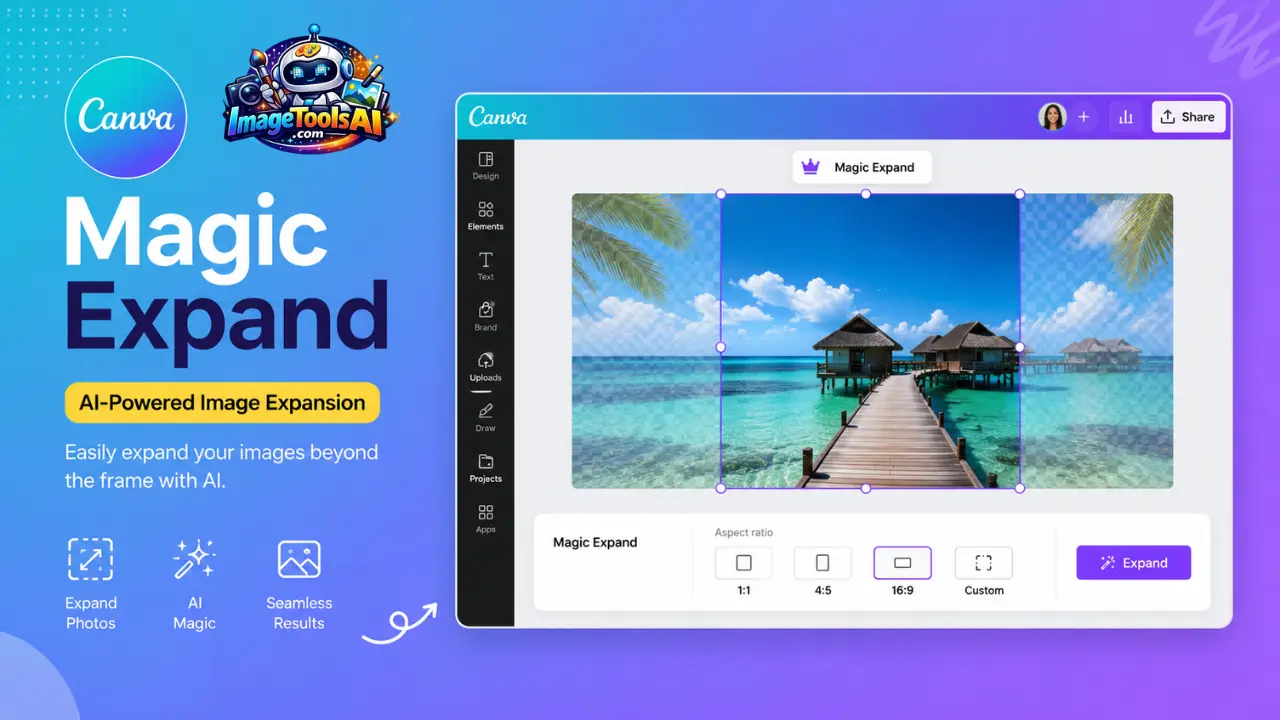
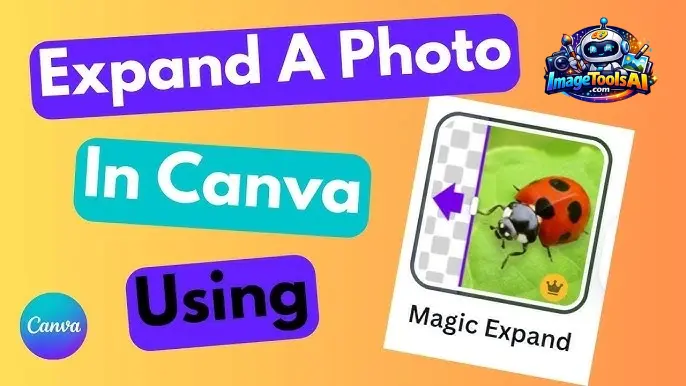
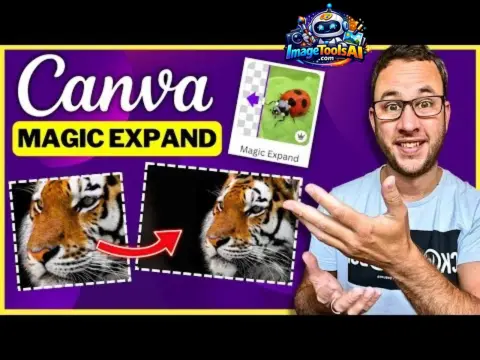
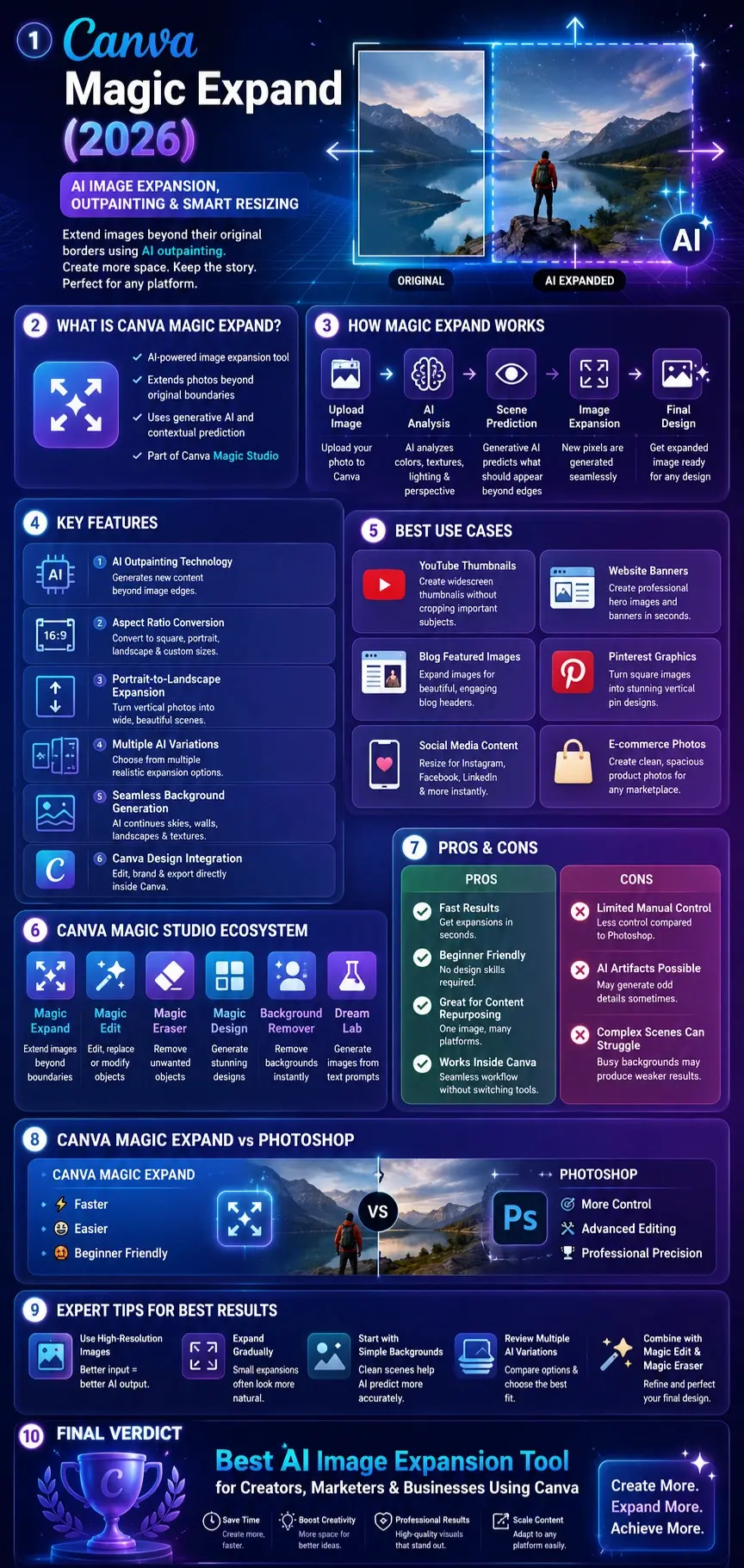
Canva Magic Expand is an AI-powered image editing feature that extends an image beyond its original dimensions.
Instead of cropping important elements or stretching existing pixels, the tool generates completely new visual content that blends naturally with the surrounding scene.
For example, if you have:
- A portrait photo
- A product image
- A landscape shot
- A social media graphic
Magic Expand can create additional background space around the edges while preserving the overall composition.
How Magic Expand Fits Into Canva Magic Studio
Magic Expand is part of Canva Magic Studio, Canva’s suite of AI-powered creative tools.
The ecosystem includes:
| Tool | Purpose |
| Magic Expand | Extend image boundaries |
| Magic Edit | Modify objects inside images |
| Magic Eraser | Remove unwanted objects |
| Magic Design | Generate designs automatically |
| Background Remover | Remove image backgrounds |
| Dream Lab | AI image generation |
Together, these tools help users create professional visuals without needing traditional graphic design expertise.
Why AI Image Expansion Matters
Modern content creators constantly need images in different dimensions.
Common examples include:
- Website banners
- Blog featured images
- Pinterest graphics
- Instagram posts
- Facebook ads
- YouTube thumbnails
- Presentation slides
Without AI expansion, creators often face:
- Cropped subjects
- Distorted backgrounds
- Low-quality stretching
- Time-consuming manual edits
Magic Expand solves these challenges by generating additional visual information automatically.
How Canva Magic Expand Works
AI Outpainting Technology Explained
At its core, Canva Magic Expand uses a technology known as AI Outpainting.
Outpainting is the process of generating new visual content beyond the edges of an existing image.
Unlike image editing, which modifies existing pixels, outpainting creates entirely new pixels that never existed before.
The AI analyzes:
- Colors
- Shapes
- Textures
- Perspective
- Lighting
- Scene context
It then predicts what should logically appear outside the original frame.
Generative AI and Context Prediction
Modern image generation models are trained on massive datasets containing millions of images.
When Canva expands an image, the AI examines:
- Objects
- Environmental cues
- Depth information
- Patterns
- Composition
The model predicts the most realistic continuation of the scene.
For example:
If a photo contains:
- Blue sky
- Mountains
- Trees
The AI understands that the missing area should likely continue those same elements.
Scene Reconstruction
Scene reconstruction is one of the most impressive aspects of Magic Expand.
The AI attempts to rebuild:
- Missing backgrounds
- Environmental details
- Perspective lines
- Natural textures
This helps expand areas that blend seamlessly with the original image.
Key Features of Canva Magic Expand
Canva Magic Expand is more than a simple image resizing feature. It combines AI-powered image generation, contextual prediction, and design-friendly workflows to help users create professional visuals quickly.
Expand Images Beyond Original Borders
The core feature allows users to extend photos outside their original frame.
Instead of stretching pixels, Canva generates entirely new content that blends naturally with the existing image.
This is particularly useful when:
- Important subjects are too close to the image edges
- Photos need additional breathing room
- Designers require more canvas space
Example
A travel photo cropped tightly around a person can be expanded to reveal additional sky, landscape, or surroundings.
Convert Portrait Images to Landscape
One of the most popular use cases is changing vertical photos into horizontal formats.
Many creators have excellent smartphone photos but need landscape images for:
- Blog headers
- Website banners
- Presentation slides
- YouTube thumbnails
Magic Expand can generate missing side content automatically.
Benefits
No awkward cropping
Better composition
More flexibility for design projects
Social Media Resizing
Different platforms require different image dimensions.
Instead of recreating images from scratch, Magic Expand can adapt visuals for:
| Platform | Common Ratio |
| Instagram Feed | 1:1 |
| Instagram Story | 9:16 |
| Facebook Post | 4:5 |
| Pinterest Pin | 2:3 |
| LinkedIn Post | 1.91:1 |
| YouTube Thumbnail | 16:9 |
This dramatically speeds up content repurposing.
Aspect Ratio Conversion
Canva Magic Expand supports multiple formats.
Users can transform:
- Square to landscape
- Landscape to portrait
- Portrait to square
- Custom Dimensions
without losing important visual elements.
Multiple AI Variations
The tool typically generates several possible expansions.
This allows users to:
- Compare outputs
- Select the most realistic version
- Choose the most visually appealing composition
Having multiple variations increases creative control.
Seamless Background Continuation
One of Magic Expand’s strongest features is background generation.
The AI can continue:
- Skies
- Grass
- Water
- Walls
- Textures
- Roads
- Natural landscapes
with surprisingly realistic results.
Smart Design Integration
Unlike standalone AI image editors, Magic Expand works directly inside Canva’s design environment.
Benefits include:
- No software installation
- No exporting between tools
- Faster workflow
- Easy collaboration
For marketers and teams, this integration can save significant production time.
How to Use Canva Magic Expand (Step-by-Step)
One reason Canva Magic Expand has become popular is its beginner-friendly workflow.
Even users with no graphic design experience can expand images within minutes.
Step 1: Upload Your Image
Start by:
- Opening Canva
- Creating a new design
- Uploading an image
Supported image types generally include:
- JPG
- PNG
- JPEG
Higher-quality source images usually produce better AI results.
Expert Tip
Use images with clear backgrounds and good lighting whenever possible.
Step 2: Select the Image
Click the image inside your design canvas.
This activates Canva’s editing options.
You’ll see tools such as:
- Crop
- Adjust
- Background Remover
- Magic Edit
- Magic Expand
depending on your subscription level.
Step 3: Open Magic Expand
Choose:
Edit Image → Magic Expand
Canva will launch the expansion interface.
The system analyzes your image before generating new content.
Step 4: Choose Expansion Area
Users can:
Expand Automatically
Canva selects a suitable expansion based on a new aspect ratio.
Expand Manually
Users drag the boundaries themselves for greater control.
Manual expansion often produces better professional results.
Step 5: Select an Aspect Ratio
Common options include:
- Square
- Portrait
- Landscape
- Widescreen
- Custom
Choose the format needed for your project.
Step 6: Generate AI Variations
Click Generate.
The AI begins:
- Scene analysis
- Context prediction
- Image generation
- Expansion rendering
Within seconds, Canva typically produces several variations.
Step 7: Review Results
Examine each version carefully.
Pay attention to:
- Object consistency
- Perspective
- Lighting
- Shadows
- Background realism
Not every generation will be perfect.
Step 8: Apply and Refine
After selecting your preferred result:
- Adjust colors
- Add text
- Include branding
- Continue editing
Everything remains inside Canva.
Step 9: Export Final Design
Download in your preferred format:
- PNG
- JPG
- SVG (where supported)
Your expanded image is now ready for publication.

Best Canva Magic Expand Use Cases
The true value of Magic Expand appears when integrated into real-world workflows.
Social Media Content Creation
Social media managers constantly need visuals in multiple dimensions.
Magic Expand helps transform one image into several platform-specific versions.
Benefits
- Faster publishing
- Better consistency
- Reduced design costs
Instagram Posts
Instagram creators often face tight cropping issues.
Magic Expand can:
- Extend backgrounds
- Improve composition
- Add negative space
Resulting images feel less crowded and more professional.
Pinterest Graphics
Pinterest favors tall vertical images.
Magic Expand can convert square visuals into vertical pin designs while preserving image quality.
YouTube Thumbnails
YouTube requires 16:9 thumbnails.
Instead of cropping valuable content, creators can expand the canvas and preserve the subject.
Particularly Useful For
- Tutorials
- Reviews
- Gaming Channels
- Educational content
Blog Featured Images
Many bloggers struggle with mismatched image dimensions.
Magic Expand allows:
- Landscape conversion
- Better hero images
- Improved visual consistency
This is especially valuable for SEO-driven content publishing.
Marketing Campaigns
Marketing teams frequently repurpose visuals across multiple channels.
Examples include:
- Facebook ads
- LinkedIn campaigns
- Display advertising
- Email marketing
One image can serve many formats.
Presentation Design
Business presentations often require widescreen graphics.
Magic Expand can generate additional background space while maintaining a polished appearance.
E-Commerce Product Photography
Online sellers frequently need different image dimensions for:
- Amazon
- Etsy
- Shopify
- eBay
- Walmart Marketplace
Magic Expand helps create cleaner product presentations.
Example
A product photo shot against a simple background can be expanded for banner ads or promotional graphics.
Advanced Canva Magic Expand Workflows
Professional users often combine Magic Expand with other Canva AI tools.
Thumbnail Expansion Workflow
Process
- Upload original photo
- Expand to 16:9
- Add headline text
- Apply branding
- Export thumbnail
Ideal for:
- YouTubers
- Course creators
- Influencers
Website Banner Workflow
Process
- Upload hero image
- Expand horizontally
- Add CTA section
- Insert logo
- Export web-ready asset
Result: Professional website banners without custom photography.
Product Photography Enhancement
Process
- Upload product image
- Expand background
- Improve composition
- Add promotional elements
- Export advertising creative
Useful for e-commerce stores and agencies.
Real Estate Marketing Workflow
Property photos often require wider compositions.
Magic Expand can:
- Extend skies
- Expand lawns
- Create spacious visuals
This helps listings appear more attractive.
AI Content Creation Workflow
Many creators combine:
- Magic Expand
- Magic Edit
- Background Remover
- Magic Design
to create complete marketing assets inside Canva.
This dramatically reduces production time.
Canva Magic Expand for Agencies
Creative agencies often manage dozens of clients across multiple industries.
The ability to quickly repurpose visual assets can significantly improve productivity.
Client Deliverables
Agencies frequently need:
- Website banners
- Social media graphics
- Blog images
- Email marketing visuals
Magic Expand reduces the need for custom photo editing on every project.
Campaign Assets
Marketing campaigns usually require:
- Square images
- Portrait images
- Landscape images
- Story formats
- Display ads
AI image expansion simplifies asset creation across channels.
Multi-Platform Creative Production
Instead of creating separate designs from scratch, agencies can:
- Start with one image.
- Expand it for each platform.
- Add platform-specific branding.
- Export final assets.
This workflow improves scalability.
Expert Expansion Strategy
Professional creators rarely rely solely on automation.
They guide the AI through smart preparation.
Create Expansion-Friendly Photos
When capturing photos intentionally for future expansion:
Leave Extra Subject Margin
Avoid placing subjects directly against edges.
Use Simple Backgrounds
Clean backgrounds improve AI prediction accuracy.
Maintain Consistent Lighting
Uniform lighting creates more realistic generations.
Expand Backgrounds First
Instead of expanding complex foreground elements:
Focus on:
- Sky
- Water
- Walls
- Floors
- Natural scenery
These areas are easier for AI to reconstruct.
Build Multi-Step Expansions
Professional workflow:
- Expand slightly.
- Evaluate results.
- Expand again.
- Refine composition.
- Add design elements.
This often produces higher-quality outcomes than one large expansion.
Combine Magic Expand with Other Canva AI Tools
Power users frequently combine:
| Canva Tool | Purpose |
| Magic Expand | Extend images |
| Magic Edit | Modify objects |
| Magic Eraser | Remove distractions |
| Background Remover | Isolate subjects |
| Magic Design | Create layouts |
The combination creates a complete AI design workflow.
Common Mistakes to Avoid
Avoiding these mistakes can dramatically improve output quality.
Expanding Too Much at Once
Large expansions increase:
- Distortions
- Hallucinations
- Unrealistic details
Smaller expansions generally perform better.
Using Low-Resolution Images
AI cannot invent perfect detail from poor-quality inputs.
Always start with the best image available.
Ignoring Composition
Expansion should improve composition, not simply add space.
Ask yourself:
“Does this expansion make the image stronger?”
Expecting Photoshop-Level Precision
Canva prioritizes simplicity.
Professional retouchers may still prefer advanced tools for pixel-level control.
Not Reviewing Multiple Versions
The first generation is rarely the best.
Comparing outputs often reveals significantly better alternatives.
Privacy, Safety, and Commercial Use
Before using any AI image editing tool professionally, understanding privacy and licensing considerations is important.
Privacy Considerations
When uploading images:
- Files are processed through Canva’s platform.
- AI systems analyze image content.
- Terms and policies may evolve.
Always review Canva’s latest privacy documentation for sensitive business projects.
Commercial Usage
Many businesses use Canva-generated content commercially.
However, users should verify:
- Current licensing Terms
- AI-generated content policies
- Intellectual property guidelines
before launching commercial campaigns.
Brand Safety
For businesses, review AI outputs carefully.
Potential issues include:
- Hallucinated objects
- Brand inconsistencies
- Unrealistic imagery
Human review remains essential.
Canva Magic Expand Pros and Cons
Advantages
Beginner Friendly
No advanced design skills required.
Fast Results
Most generations complete within seconds.
Integrated Workflow
Works directly inside Canva.
Multi-Platform Flexibility
Excellent for social media and marketing.
Cost Effective
More affordable than many professional editing workflows.
Disadvantages
Occasional Hallucinations
Generated content isn’t always accurate.
Limited Manual Control
Less flexibility compared to Photoshop.
Complex Scenes Can Struggle
Crowded environments may generate weaker results.
Subscription Requirements
Premium features may require paid access.
Quick Pros vs Cons Table
| Pros | Cons |
| Easy to use | Less control than Photoshop |
| Fast generation | Occasional artifacts |
| Integrated with Canva | Limited advanced editing |
| Great for marketers | Complex scenes may fail |
| Excellent for resizing | AI results vary |
People Also Ask
A: Canva may provide limited access through free plans, but the full Magic Expand experience is generally associated with Canva’s premium offerings. Always check the latest plan details on Canva’s website.
A: Yes. Canva offers mobile functionality, allowing users to expand images directly from smartphones and tablets. Desktop editing typically provides greater precision.
A: No. Magic Expand primarily extends image boundaries by generating new content. It is not a dedicated image upscaler, although expanded images may appear larger.
A: It depends on your needs. Canva is easier and faster for everyday content creation, while Photoshop offers superior precision and professional editing control.
A: AI predicts what should exist outside the image frame. When context is unclear, the system may create unrealistic objects, textures, or visual artifacts.
Conclusion
Out of nowhere, tools like Canva Magic Expand have changed the way people edit images, thanks to artificial intelligence. What once felt complex now fits into everyday creation, quietly shifting what’s possible.
Seconds tick by while old methods chew up time – stretching backdrops, copying patterns, reshaping scenes through complex tools. Now, real-looking extensions pop up fast, no sweat. Blog headers, Video Previews, online store pictures, posts for networks, ads on platforms, work handed to customers – all flow more smoothly. Efficiency jumps without shouting about it. The grind softens when effort shifts behind the curtain.
What stands out is how simple it is, how fast it works, one big plus – it fits right into Canva’s full suite. Not meant to swap Photoshop when heavy editing comes up, yet still packs plenty of power for everyday needs. Creators find what they need here, so do marketers, solo workers, teams, and smaller companies. Enough muscle without the mess.
Picture resizing for different apps? Canva Magic Expand fits right into how you build visuals with smart tools. A solid pick when keeping clarity matters most.
Start smart when shaping visuals at ImageToolsAI.com – pairing Magic Expand with different AI tools opens up room to adapt. Workflow grows easier when one tool flows into another without friction. Change comes quietly, built into how tasks link together across steps.
Check out these AI-powered image editing resources. Find top tools through real-world examples. Workflow ideas unfold across each guide. Some methods might surprise you. Future-focused techniques sit alongside practical tips. See how others reshape visuals every day.