Introduction
Pictures that look sharp matter now more than ever. If what you share online lacks clarity – be it for stores on the web, posts people scroll through, articles with illustrations, slides shown in meetings, or ads meant to attract – it might not hold attention or feel trustworthy.
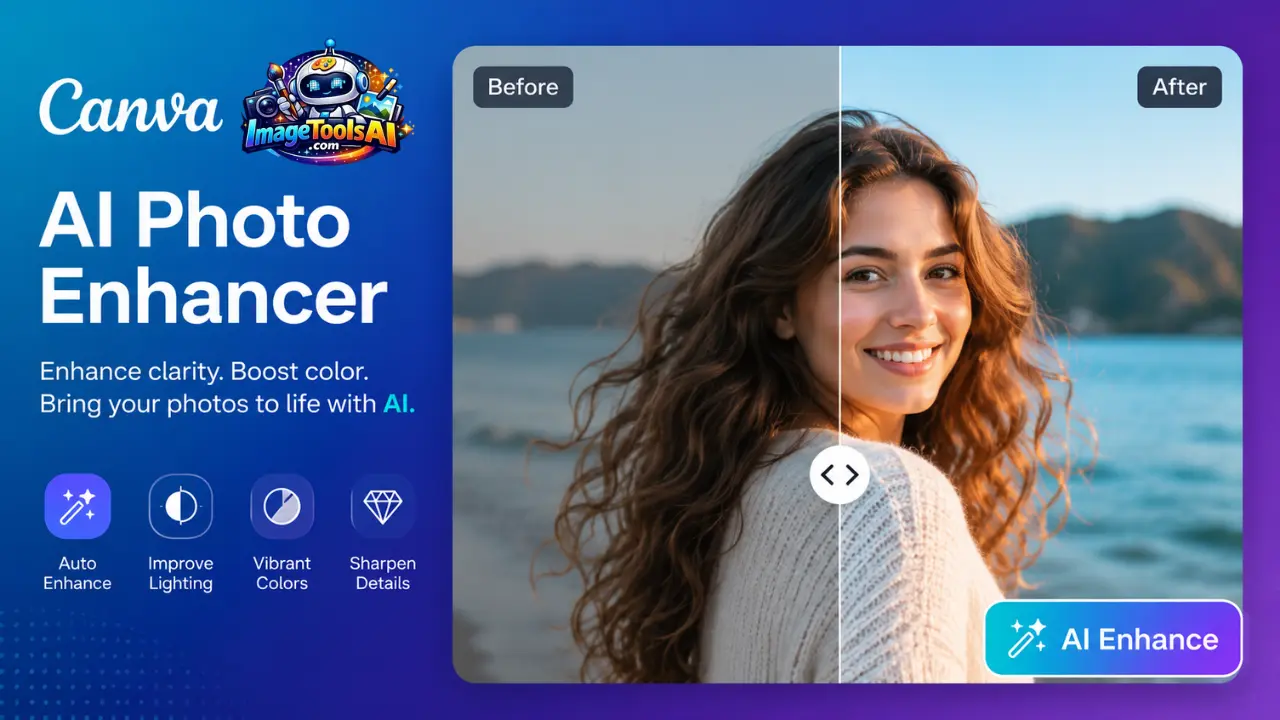
Picture clarity gets easier when smart tools step in. A single click sharpens edges, lifts fuzziness, or pumps up dull tones. Rather than wrestling sliders and menus, people fix images fast. Resolution climbs without extra effort, with Canva AI Photo Enhancer. Colors look truer after subtle tweaks happen behind the scenes. Details snap into focus because the system learns what eyes prefer.
This guide walks through what matters most when using Canca AI Photo Enhancer – features sit alongside pricing details, while insights into the underlying tech unfold piece by piece. Real-world applications appear throughout, each linked to practical scenarios where results can differ. Side-by-side looks at alternatives show trade-offs without favoring one choice. Constraints pop up early, not tucked away. Expert thoughts cap it off, grounded in actual usage rather than theory.
What Is Canva AI Photo Enhancer?
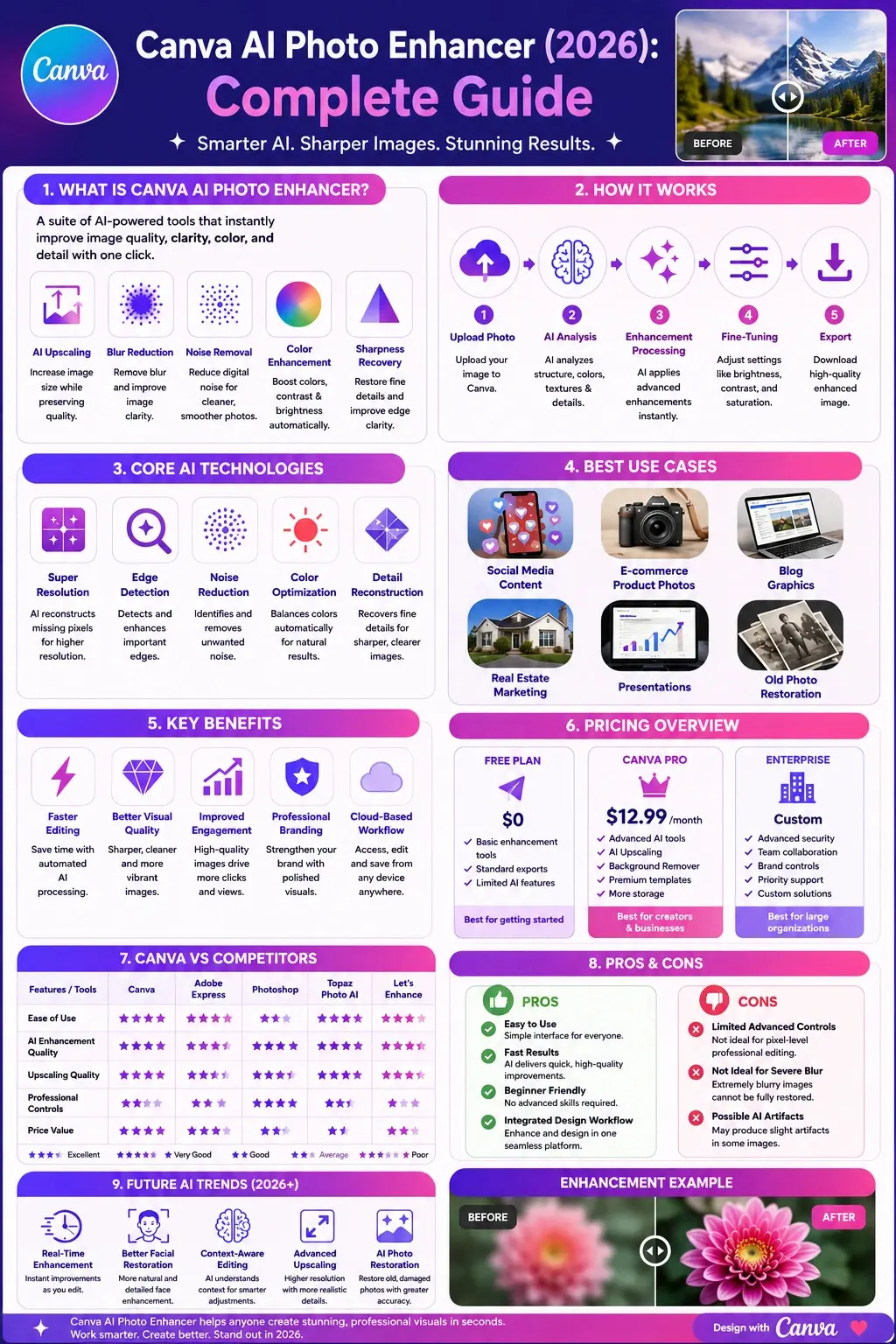
Canva AI Photo Enhancer is a collection of AI-powered image improvement tools built into Canva’s design platform.
It helps users:
- Improve image clarity
- Increase perceived resolution
- Reduce blur
- Optimize brightness and contrast
- Enhance colors
- Sharpen details
- Prepare images for digital publishing
Who Should Use It?
- Bloggers
- Marketers
- E-commerce sellers
- Social media creators
- Small businesses
- Freelancers
- Students
- Educators
How Canva AI Photo Enhancer Works
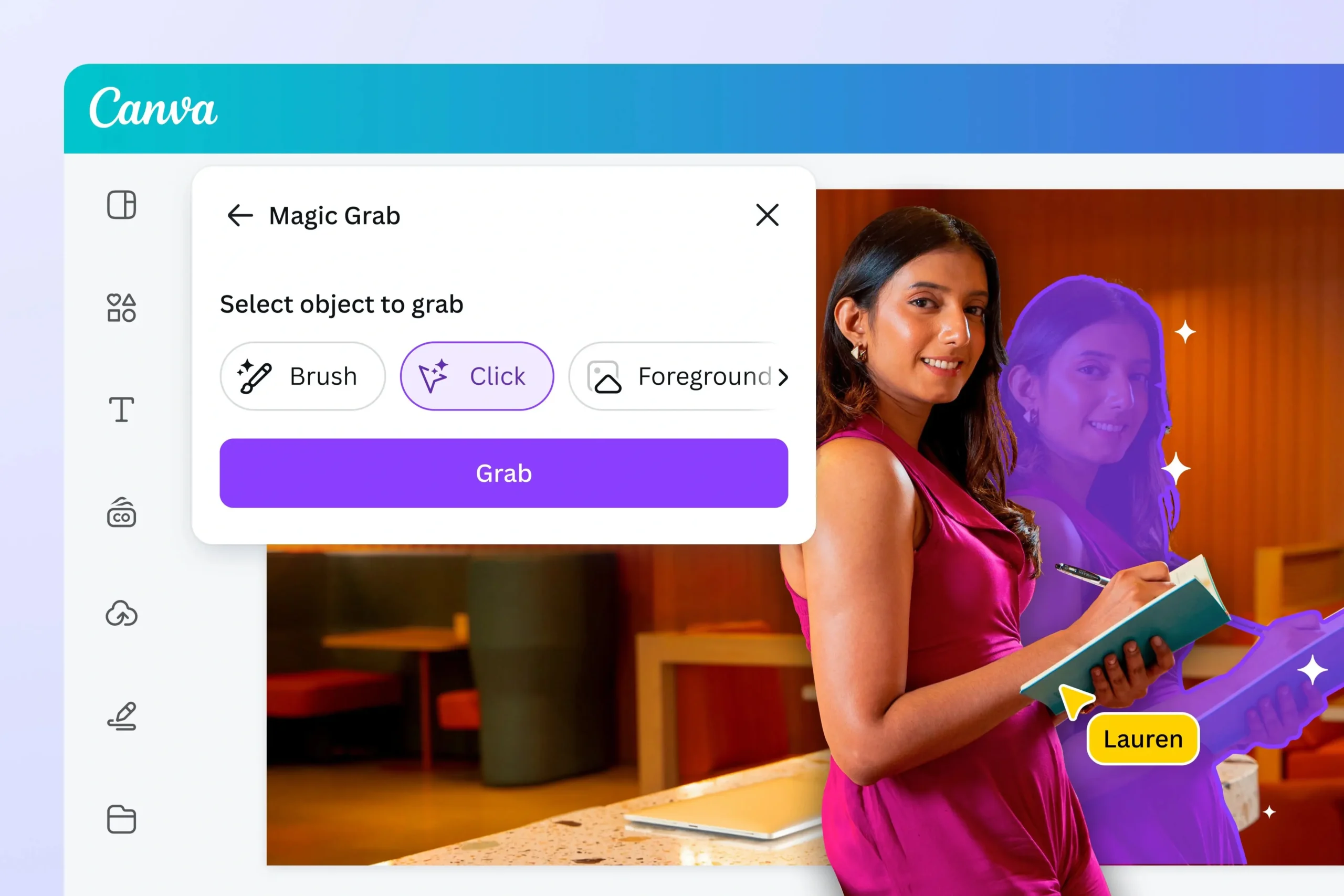
Canva uses AI image-processing models that analyze image structure, textures, edges, colors, and visual patterns.
The system then applies enhancements such as:
AI Upscaling
Upscaling increases image dimensions while preserving quality.
Noise Reduction
AI identifies unwanted digital noise and removes it.
Sharpness Recovery
Enhancement algorithms improve edge clarity.
Color Optimization
The tool automatically improves brightness, contrast, and color balance.

Why Canva AI Photo Enhancer Matters in 2026
Visual competition is higher than ever.
Benefits include:
- Better Engagement
- Improved click-through rates
- More professional branding
- Enhanced e-commerce performance
- Faster content creation
For creators who need quick results without professional software, Canva provides an accessible solution.
Key Features
| Feature | Benefit |
| AI Upscaling | Increase image size |
| Blur Reduction | Improve clarity |
| Auto Adjust | One-click optimization |
| Color Enhancement | Better visual appeal |
| Noise Reduction | Cleaner images |
| Cloud Editing | Work from any device |
| Design Integration | Edit directly inside Canva |
Step-by-Step Tutorial
Step 1: Upload Your Photo
Open Canva and upload the image you want to improve.
Step 2: Open Edit Photo
Select the image and choose “Edit Photo.”
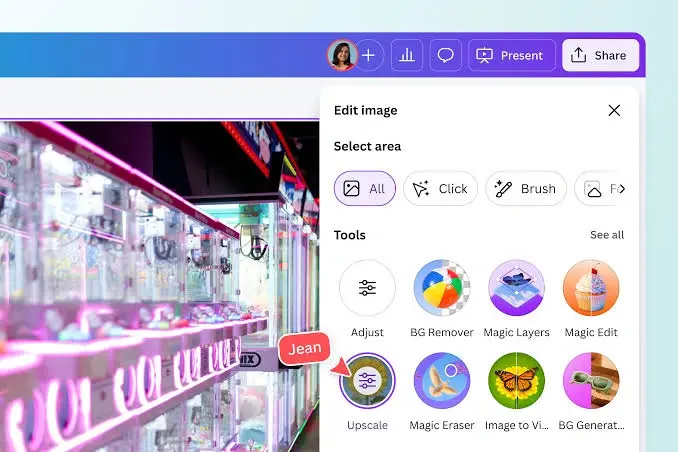
Step 3: Access Enhancement Tools
Choose the available AI enhancement or upscale options.
Step 4: Apply AI Improvements
Allow Canva to process the image.
Step 5: Fine-Tune Adjustments
Adjust brightness, contrast, saturation, and sharpness.
Step 6: Export
Download the final image in the desired format.
Understanding AI Image Enhancement Technology
What Is Super Resolution?
Super resolution uses deep learning to predict missing details when enlarging images.
Instead of stretching pixels, AI reconstructs visual information based on learned image patterns.
How AI Sharpens Images
AI identifies important edges and textures.
It then increases local contrast to make details appear sharper.
How Noise Reduction Works
AI distinguishes real image details from unwanted noise.
This helps produce cleaner, more professional-looking photos.
Best Use Cases
Social Media Content
Create sharper, more engaging visuals.
E-commerce Product Photos
Improve product presentation and trust.
Blog Graphics
Enhance featured images and thumbnails.
Real Estate Marketing
Showcase properties more effectively.
Presentations
Improve visual quality in business decks.
Old Photo Restoration
Enhance scanned historical photographs.
Benefits for Businesses
Faster Workflows
Reduce editing time significantly.
Lower Costs
Avoid expensive software subscriptions.
Improved Brand Consistency
Maintain a professional visual identity.
Easy Collaboration
Teams can edit projects within Canva.
Pricing Overview
| Plan | Suitable For |
| Free | Basic users |
| Canva Pro | Creators and businesses |
| Enterprise | Large organizations |
Some AI-powered features may require paid plans depending on Canva’s current offerings.
Canva AI Photo Enhancer vs Competitors
| Tool | Ease of Use | AI Quality | Professional Controls |
| Canva | Excellent | Very Good | Moderate |
| Adobe Express | Excellent | Very Good | Moderate |
| Photoshop | Advanced | Excellent | Extensive |
| Topaz Photo AI | Good | Excellent | Advanced |
| Let’s Enhance | Good | Excellent | Moderate |
| Fotor | Good | Good | Basic |
Canva vs Adobe Express
Both offer beginner-friendly enhancement tools.
Canva vs Photoshop
Photoshop provides greater control but requires expertise.
Canva vs Topaz Photo AI
Topaz generally produces stronger upscaling results but at a higher cost.
Pros and Cons
Pros
- Easy to use
- Fast Processing
- Integrated design workflow
- Cloud-based
- Suitable for beginners
Cons
- Limited advanced controls
- Cannot fully repair severely blurry images
- AI artifacts may occasionally appear
- Professional photographers may prefer specialized tools
Tips for Better Results
- Start with the highest-quality image possible.
- Avoid heavily compressed JPEG files.
- Use PNG for graphics when possible.
- Upscale before applying additional edits.
- Export at maximum quality settings.
- Review images at full resolution before publishing.
Common Mistakes to Avoid
Using Extremely Low-Quality Images
AI can improve images but cannot perform miracles.
Over-Sharpening
Excessive sharpening may create unnatural edges.
Ignoring Export Settings
Poor export settings can reduce image quality.
Excessive Enhancements
Moderation usually produces better results.
Privacy, Safety & Commercial Use
Canva processes images through its cloud-based infrastructure.
For most users, Canva provides a secure environment for image enhancement and design work.
Commercial applications include:
- Marketing materials
- E-commerce listings
- Social media campaigns
- Website graphics
- Business presentations
Always ensure you own the rights to any image you upload, and review Canva’s latest licensing policies before large-scale commercial use.
Future AI Image Trends
The next generation of image enhancement tools will likely include:
- More realistic detail reconstruction
- Better facial enhancement
- Improved print optimization
- Real-time enhancement
- AI-assisted restoration
- Context-aware editing
Canva continues to expand its AI ecosystem, making advanced image editing increasingly accessible.
Who Should Use Canva AI Photo Enhancer?
Ideal for:
- Content Creators
- Bloggers
- Small businesses
- Freelancers
- Students
- Marketers
- Social media managers
Who Should Avoid It?
Users requiring:
- Pixel-level editing
- Professional retouching
- Scientific image analysis
- High-end photography workflows
may benefit from dedicated professional software.
Realistic Expectations
Canva AI Photo Enhancer can significantly improve many images, but it cannot perfectly restore severely damaged, blurry, or extremely low-resolution photos.
The best results come from starting with reasonably good source images.
People Also Ask
A: Some enhancement features are available within Canva’s ecosystem, while advanced capabilities may require Canva Pro.
A: It can improve mild blur, but severe blur cannot always be fully corrected.
A: Yes, Canva offers AI-powered upscaling tools that can improve image size and quality.
A: For ease of use, yes. For professional editing control, Photoshop remains more powerful.
A: It can improve quality, but dedicated restoration tools may produce better results for heavily damaged images.
Conclusion
Picture cleanup made easier – that’s what Canva’s AI tool offers. Not magic, just smarter tweaks behind the scenes. Anyone creating visuals finds it useful: teams, learners, brands, freelancers. Fancy design skills? Not needed here. The tech does the heavy lifting quietly. Results show up sharp, clear, and ready to use. No steep learning curves are slowing things down.
What stands out is how it blends smart resizing, edge clarity, better colors, yet fits naturally inside Canva’s layout system – useful for today’s creators. Even if experts lean toward standalone tools such as Photoshop or Topaz Photo AI, this one offers something different: fast results without complexity, low cost, Solid Output, all wrapped in ease.
Most people still find it a top choice for improving images using artificial intelligence in 2026.