Introduction
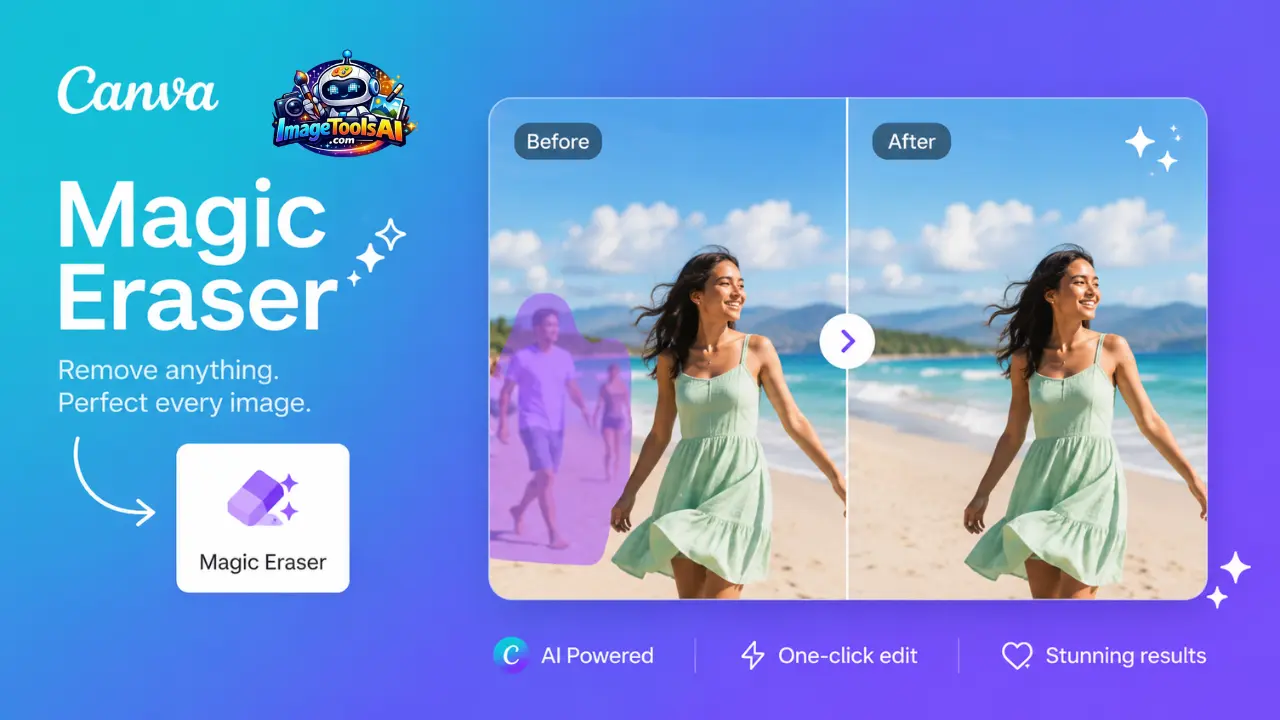
Out of nowhere, wiping out photo clutter no longer needs pricey programs or long learning curves. These days, smart tools driven by artificial intelligence handle the task quietly behind the scenes. A standout? Canva Magic Eraser steps in where others struggle – lifting away faces, items, words, dark patches, or mess from pictures almost effortlessly.
Picture quality matters a lot if you make content, sell things online, run ads, write blogs, work freelance, or manage a company. A sharp, tidy photo often leads people to trust your name more, stay longer, and click more. The tool called Canva Magic Eraser makes fixing photos easier than before. It uses smart tech that studies nearby pixels. Once something gets taken out, it fills the gap naturally, like it was never there.
Jump into this full walkthrough to see how Canva Magic Eraser functions, what tools it includes, how much it costs, where it shines in daily use, complex edits it supports, where it falls short, how it stacks up against rivals, and smart tricks pros use for cleaner outcomes. Finish here, knowing if this AI image editor fits your needs by 2026.
What Is Canva Magic Eraser?
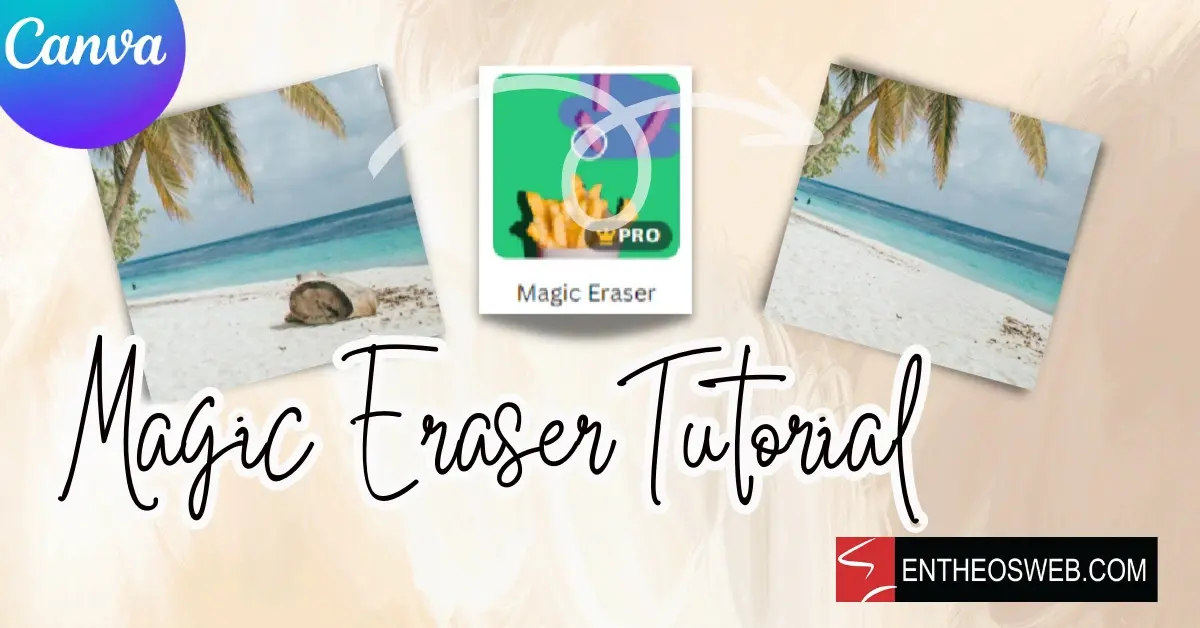
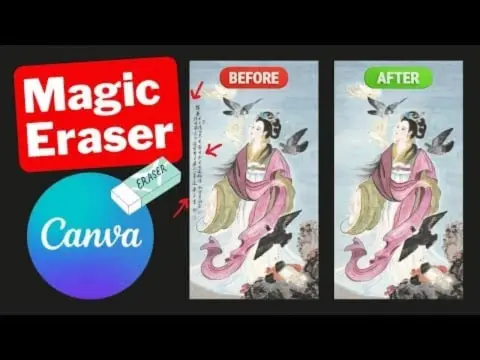
Start brushing across anything you wish to be gone. That spot vanishes when Canva’s intelligence steps in. A quick swipe marks what stays out of frame. The space reshapes itself using surrounding details. This happens inside Canva’s photo workspace. Brush lightly on distractions. Background reappears like nothing broke the scene. Intelligence handles gaps without extra clicks.
Inside Canva’s wider AI setup – called Magic Studio – you’ll find this tool sitting alongside others that handle visuals, generate images, automate layouts, plus reshape written material. What stands out is how each piece connects without feeling forced. It builds up a flow where making things look effortless. Even complex edits feel light because the system works quietly behind the scenes.
What Can Canva Magic Eraser Remove?
- Unwanted people
- Background distractions
- Photobombers
- Power lines
- Shadows
- Logos
- Text overlays
- Product imperfections
- Street signs
- Small objects and clutter
Why Canva Created Magic Eraser
Modern content creation requires fast editing. Canva developed Magic Eraser to help users create professional-quality visuals without needing advanced tools like Photoshop.
Quick Answer
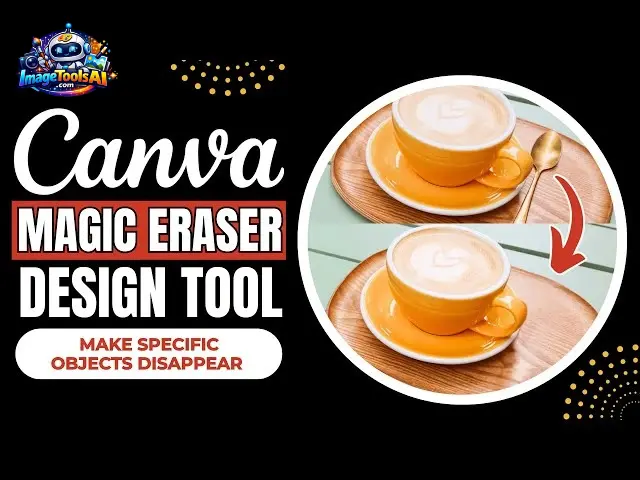
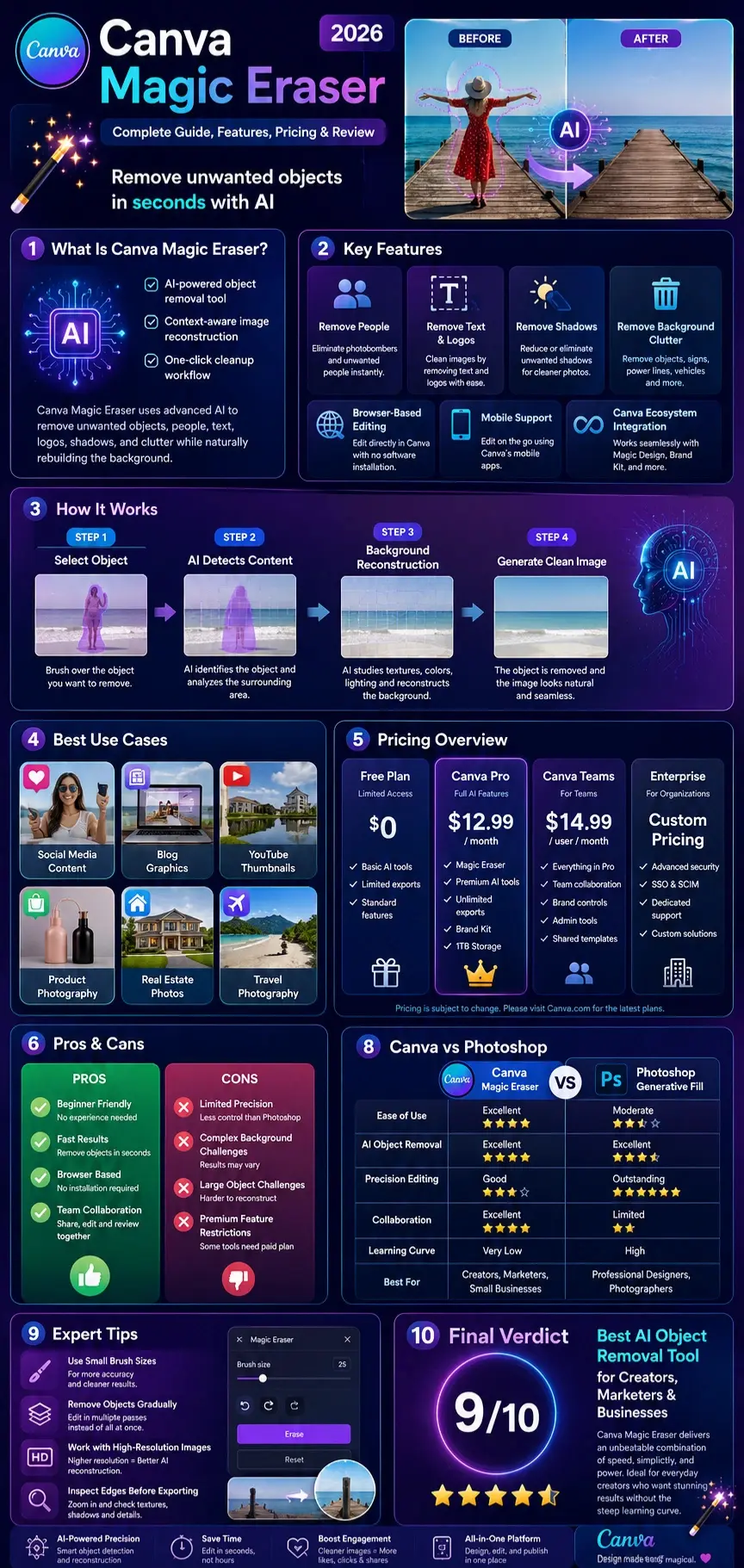
Canva Magic Eraser is an AI object removal tool that intelligently removes unwanted elements from photos and automatically rebuilds the surrounding background for a cleaner image.
How Canva Magic Eraser Works
Understanding the technology behind Canva Magic Eraser helps users achieve better editing results.
AI Object Detection
The system first identifies the selected object based on the area highlighted by the user.
The AI evaluates:
- Shape
- Boundaries
- Texture
- Lighting
- Image context
This helps determine what should be removed and what should remain untouched.
Context-Aware Reconstruction
After identifying the target object, Canva analyzes nearby pixels and visual patterns.
The AI studies:
- Background colors
- Surface textures
- Shadows
- Environmental consistency
This process allows the software to rebuild the area naturally.
Generative Filling Technology
Magic Eraser uses generative AI principles to predict what should exist behind the removed object.
Instead of simply copying nearby pixels, the AI generates new visual information that blends with the image.
Texture Recreation
One of the biggest challenges in object removal is preserving realism.
Canva’s AI attempts to recreate:
- Grass
- Sky
- Walls
- Water
- Pavement
- Furniture surfaces
The better the surrounding texture, the better the final result.
Background Prediction
The AI predicts hidden image areas based on visible context.
For example:
If a tourist blocks part of a beach photo, Canva estimates what the sand and ocean behind that person should look like and reconstructs it automatically.
Mini Summary
Canva Magic Eraser combines object detection, context-aware editing, texture recreation, and generative AI to remove unwanted elements while maintaining visual consistency.
Why Canva Magic Eraser Matters in 2026
AI image editing is becoming a standard requirement across industries.
Content creators now publish:
- Blog graphics
- Pinterest pins
- YouTube thumbnails
- Product images
- Social media posts
- Advertising creatives
at a much higher volume than ever before.
Manual editing cannot keep up with modern content demands.
Growing Demand for Faster Editing
Businesses need:
- Faster content production
- Lower editing costs
- Better visual quality
- Consistent branding
Magic Eraser addresses all four challenges.
AI-Powered Visual Marketing
Professional visuals often determine whether users:
- Click
- Engage
- Share
- Purchase
Removing distractions improves image quality and increases conversion potential.
Creator Economy Expansion
Influencers, freelancers, and agencies increasingly rely on AI tools to accelerate production.
Canva Magic Eraser reduces editing time from minutes—or even hours—to seconds.
Better Accessibility
Unlike traditional editing software, Canva offers:
- Browser-based access
- Mobile editing
- Beginner-friendly controls
- Team collaboration
This makes advanced image editing accessible to almost everyone.
Key Features of Canva Magic Eraser
One-Click Object Removal
Remove unwanted elements without advanced editing skills.
Remove People From Photos
Eliminate photobombers and crowded backgrounds for cleaner images.
Remove Background Distractions
Improve focus on your primary subject.
Examples include:
- Trash cans
- Signboards
- Vehicles
- Random objects
Remove Shadows
Certain unwanted shadows can be reduced or eliminated to create cleaner product photography.
Remove Text and Logos
Clean screenshots and images by removing unnecessary overlays where usage rights permit.
Browser-Based Editing
No software installation required.
Users can edit directly inside Canva’s web platform.
Mobile Editing Support
Available through Canva’s mobile apps, allowing image cleanup on the go.
Integration With Canva Ecosystem
Works alongside:
- Magic Edit
- Magic Design
- Background Remover
- AI Image Generator
- Brand Kit
- Content Planner
Team Collaboration
Teams can edit and review images inside a shared Canva workspace.
Benefits of Canva Magic Eraser for Creators and Businesses
Content Creators
Benefits include:
- Cleaner thumbnails
- Better social media visuals
- Improved engagement rates
- Faster editing workflow
Bloggers
Use Magic Eraser to:
- Improve featured images
- Create Pinterest graphics
- Clean screenshots
- Enhance tutorials
E-Commerce Brands
Product images perform better when distractions are removed.
Magic Eraser helps:
- Highlight products
- Improve marketplace listings
- Increase professionalism
- Support conversion optimization
Marketing Agencies
Agencies can speed up production while maintaining visual quality.
Benefits include:
- Faster client delivery
- Reduced editing costs
- Consistent branding
Real Estate Professionals
Property photos often contain distracting elements.
Magic Eraser can help remove:
- Cars
- Garbage bins
- Temporary signs
- Visual clutter
For Small Businesses
Without hiring a professional editor, businesses can improve image quality and create stronger visual branding.
How to Use Canva Magic Eraser Step by Step
Step 1: Open Canva
Log in to your Canva account.
Step 2: Upload Your Image
Upload the photo you want to edit.
Supported image formats generally include:
- JPG
- PNG
- WEBP
Step 3: Select the Image
Click on the image inside your design workspace.
Step 4: Open Edit Photo
Select Edit Photo from Canva’s editing menu.
Step 5: Launch Magic Eraser
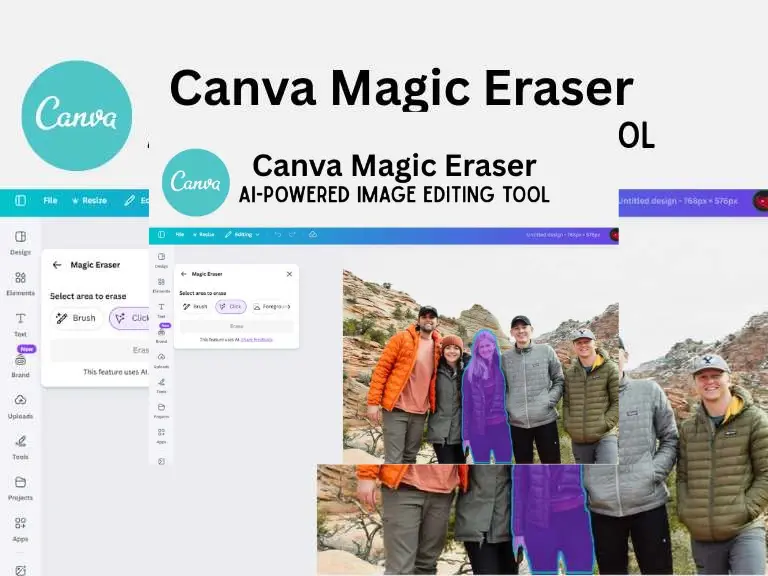
Choose Magic Eraser from the available AI editing tools.
Step 6: Adjust Brush Size
Use a brush size appropriate for the object you want to remove.
Smaller brushes provide more precise control.
Step 7: Highlight the Object
Carefully paint over the object.
Ensure the entire unwanted element is covered.
Step 8: Let AI Process the Image
Canva will analyze the image and automatically generate replacement content.
Step 9: Review the Result
Inspect:
- Edges
- Textures
- Shadows
- Lighting consistency
Step 10: Repeat if Necessary
Complex edits may require multiple passes.
Step 11: Export Your Image
Download the finished image in your preferred format.
Best Export Formats
| Use Case | Recommended Format |
| Blog Images | JPG |
| Social Media | PNG |
| Product Photos | PNG |
| Transparent Graphics | PNG |
| Website Graphics | WEBP |
Mini Summary
The most successful Canva Magic Eraser edits typically involve accurate object selection, smaller brush sizes, and multiple refinement passes rather than attempting to remove large, complex objects in a single edit.
Best Canva Magic Eraser Workflows
Social Media Workflow
- Upload Image
- Remove distractions
- Adjust brightness
- Add branding
- Export for Instagram, Facebook, or LinkedIn
Blog Graphics Workflow
- Clean featured image
- Remove unwanted objects
- Add headline overlay
- Optimize dimensions
- Export for SEO-friendly publishing
YouTube Thumbnail Workflow
- Remove distracting elements
- Improve the focal point
- Add high-contrast text
- Increase visual impact
E-commerce Workflow
- Upload product image
- Remove dust or imperfections
- Clean background clutter
- Optimize for marketplace standards
Real Estate Workflow
- Remove temporary objects
- Improve room presentation
- Highlight property features
- Create cleaner listing visuals
Travel Photography Workflow
- Remove tourists
- Remove signs
- Remove visual clutter
- Create cleaner destination images
Advanced Canva Magic Eraser Tips
Many users achieve average results because they use the tool incorrectly. These advanced techniques can dramatically improve image quality.
Remove Crowds More Effectively
Instead of selecting an entire crowd:
- Remove one person at a time.
- Work from background to foreground.
- Inspect each edit carefully.
This reduces reconstruction errors.
Remove Reflections
Reflections can be difficult because they affect surrounding textures.
Best approach:
- Use smaller brush sizes.
- Remove reflections gradually.
- Zoom in for precise selections.
Remove Wires and Cables
Power lines and cables are common distractions in outdoor photography.
For best results:
- Use narrow brush strokes.
- Follow the line precisely.
- Edit in sections rather than one long pass.
Clean Product Photography
Product photos often contain:
- Dust particles
- Packaging defects
- Surface imperfections
Magic Eraser can quickly improve product presentation.
Improve Advertising Creatives
Removing distractions helps:
- Increase visual focus
- Improve ad clarity
- Highlight key selling points
Work at High Resolution
Higher-resolution images generally provide:
- Better AI predictions
- Cleaner textures
- More accurate object removal
Duplicate Before Editing
Always keep an original copy.
This allows:
- Easier revisions
- Better quality comparisons
- Safer experimentation
Common Canva Magic Eraser Mistakes to Avoid
Selecting Too Much Area
A large selection gives the AI more information to recreate, which often increases errors.
Removing Complex Objects in One Pass
Large objects should be removed gradually.
Ignoring Edge Details
Edges around:
- Hair
- Buildings
- Products
- Text
require extra precision.
Using Low-Resolution Images
Poor image quality often produces poor AI-generated results.
Expecting Photoshop-Level Precision
While Canva Magic Eraser is impressive, it is designed primarily for speed and convenience rather than advanced professional retouching.
Skipping Quality Checks
Always zoom in before exporting.
Check:
- Edges
- Shadows
- Textures
- Repeating patterns
Canva Magic Eraser Pricing
Pricing structures may change over time, but Canva generally offers Magic Eraser through its premium AI editing ecosystem.
Canva Pricing Overview
| Plan | Suitable For | Access Level |
| Free | Casual users | Limited AI features |
| Canva Pro | Creators & freelancers | Full AI editing access |
| Canva Teams | Businesses | Collaboration + AI tools |
| Enterprise | Large organizations | Advanced administration |
Is Canva Magic Eraser Free?
Availability can vary depending on Canva’s current feature rollout.
Historically, advanced AI editing tools have been associated primarily with Canva Pro and Canva Teams subscriptions.
Is Canva Pro Worth It?
For users regularly creating:
- Blog graphics
- Social media content
- Marketing visuals
- Product photography
The subscription often delivers significant productivity benefits.
Mini Summary
Canva Magic Eraser provides the most value when combined with the broader Canva ecosystem, particularly for users producing visual content regularly.
Canva Magic Eraser Pros and Cons
Pros
| Pros | Benefits |
| Beginner Friendly | No editing experience required |
| Fast Results | Object removal takes seconds |
| Browser Based | No software installation |
| Mobile Support | Edit anywhere |
| Canva Integration | Works with existing workflows |
| Collaboration Features | Ideal for teams |
| Easy Learning Curve | Minimal training required |
Cons
| Cons | Limitations |
| Limited Precision | Less control than Photoshop |
| AI Artifacts | Can appear in difficult edits |
| Complex Background Issues | Results vary |
| Large Object Challenges | Harder reconstructions |
| Premium Restrictions | Some features require paid plans |
Expert Verdict
Canva Magic Eraser excels at convenience, speed, and accessibility. It is not necessarily the most advanced object removal tool available, but it is one of the easiest to use.
Canva Magic Eraser Troubleshooting Guide
Magic Eraser Not Appearing
Possible causes:
- Unsupported account type
- Feature rollout delays
- Browser issues
- Outdated application
Processing Error
Try:
- Refreshing Canva
- Re-uploading the image
- Reducing image size
- Checking internet connectivity
Poor Object Removal Results
Solutions:
- Use smaller brush selections
- Edit in multiple passes
- Increase image resolution
- Try alternative removal methods
Object Still Visible
Sometimes a second or third pass is required.
Zoom in and remove the remaining fragments carefully.
Slow Performance
Potential causes include:
- Large image files
- Browser limitations
- Device performance constraints
Mobile Editing Problems
Ensure:
- The Canva app is updated
- A stable internet connection exists
- Device storage is sufficient
Canva Magic Eraser vs Photoshop Generative Fill
Both tools use AI to remove unwanted objects, but they target different audiences.
Feature Comparison
| Feature | Canva Magic Eraser | Photoshop Generative Fill |
| Ease of Use | Excellent | Moderate |
| Learning Curve | Very Low | High |
| AI Object Removal | Excellent | Excellent |
| Professional Control | Limited | Advanced |
| Layer Editing | Basic | Extensive |
| Precision Editing | Good | Outstanding |
| Collaboration | Excellent | Limited |
| Browser-Based | Yes | No |
| Mobile Accessibility | Excellent | Moderate |
| Best For | Beginners & Creators | Professional Designers |
Which Is Better?
Choose Canva Magic Eraser if:
- You want fast results.
- You are a beginner.
- You work primarily in Canva.
- You need team collaboration.
Choose Photoshop Generative Fill if:
- You require maximum editing precision.
- You work with professional photography.
- You need advanced layer controls.
- You regularly perform complex retouching.
Expert Verdict
For most creators, Canva offers the best balance between simplicity and performance. Photoshop remains the professional standard for advanced editing projects.
Canva Magic Eraser vs Adobe Express
Adobe Express has expanded its AI editing capabilities significantly.
Comparison Table
| Feature | Canva Magic Eraser | Adobe Express |
| Ease of Use | Excellent | Excellent |
| Object Removal | Excellent | Very Good |
| Design Tools | Excellent | Excellent |
| Brand Management | Excellent | Excellent |
| AI Features | Extensive | Extensive |
| Collaboration | Strong | Strong |
| Learning Curve | Easier | Moderate |
Canva Magic Eraser vs Remove.bg
These tools serve different purposes.
Comparison Table
| Feature | Canva Magic Eraser | Remove.bg |
| Object Removal | Yes | Limited |
| Background Removal | Basic | Excellent |
| AI Editing | Extensive | Focused |
| Design Platform | Full Suite | Specialized |
| Marketing Tools | Yes | No |
Best Choice
If you need complete image editing, Canva wins.
If your primary goal is removing backgrounds quickly, Remove.bg remains one of the strongest specialized solutions.
Privacy, Security, and Commercial Use
AI image editing raises important privacy and licensing considerations.
Image Privacy
Before uploading sensitive images, users should review Canva’s current privacy policies and data handling practices.
Questions to consider:
- How long are files stored?
- Is data used for AI training?
- What security protections exist?
Always verify the latest policies through Canva’s official documentation.
Commercial Usage Rights
Businesses should confirm:
- Licensing terms
- Commercial usage permissions
- Intellectual property requirements
Especially when editing client images or commercial marketing assets.
Ethical Object Removal
While object removal is useful, users should avoid deceptive or misleading edits that could misrepresent reality in journalism, legal matters, or public communications.
Best Practice
Use Canva Magic Eraser responsibly and maintain transparency when image edits significantly alter factual content.
Future of Canva Magic Eraser
AI image editing technology is evolving rapidly.
The next generation of object removal tools will likely become dramatically more intelligent.
Better Object Detection
Future AI models may automatically identify removable elements without manual brushing.
Smarter Scene Reconstruction
Advanced scene understanding could generate more realistic replacements.
Multi-Layer Editing
Future versions may support deeper editing controls while maintaining Canva’s simplicity.
Context-Aware Retouching
AI could understand:
- Objects
- Lighting
- Perspective
- Reflections
simultaneously.
Integrated AI Workflows
Magic Eraser will likely become increasingly connected with:
- Magic Edit
- Magic Design
- AI Image Generator
- AI Video Creation Tools
Real-Time Editing
Future versions may perform object removal instantly without waiting for processing.
AI-Assisted Creative Direction
Users may eventually describe desired edits using natural language instead of manually selecting objects.
Example:
“Remove all tourists from this beach photo.”
The AI would complete the task automatically.
Who Should Use Canva Magic Eraser?
Content Creators
Perfect for:
- YouTubers
- Bloggers
- Influencers
- Social media managers
Freelancers
Ideal for:
- Graphic designers
- Virtual assistants
- Marketing consultants
E-commerce Sellers
Useful for:
- Product images
- Marketplace listings
- Advertising creatives
Small Businesses
Great for improving brand visuals without expensive editing software.
Marketing Teams
Helps accelerate campaign production and improve creative quality.
Educators and Students
Provides easy image cleanup without requiring advanced editing knowledge.
Who Should Avoid Canva Magic Eraser?
Professional Retouchers
High-end commercial photography may require Photoshop-level precision.
Advanced Designers
Users needing detailed masking, compositing, or layer manipulation may find Canva limiting.
Large-Scale Production Studios
Studios with complex editing pipelines often require specialized software.
Users Expecting Perfect Results Every Time
AI-generated editing remains imperfect, especially in highly detailed scenes.
People Also Ask
Canva occasionally changes feature availability, but advanced AI editing features are typically associated with Canva Pro or premium plans. Always check Canva’s latest pricing page for current access details.
For simple object removal tasks, accuracy is often excellent. More complex scenes with detailed backgrounds may require multiple editing passes.
Yes. Removing people is one of its most popular use cases. Results are usually best when the background behind the person is relatively simple.
In many cases, yes. However, success depends on image complexity and the surrounding area that needs reconstruction.
Yes. Canva offers mobile support through its applications, allowing users to perform AI-powered object removal on smartphones and tablets.
Conclusion
Picture quality matters more than ever now. With smart software stepping in, fixing photos feels less like magic and more like normal work. Is this tool inside Canva? It clears clutter without needing skill. Messy backgrounds fade away fast. Clean results show up quickly. Anyone can give images a sharper look, even on their first try.
Picture this: tweaking images for your online shop, shaping how people see you online, dropping new posts now and then, juggling updates across platforms, even crafting materials meant to grab attention – that’s where Canva Magic Eraser steps in. Editing Gets Faster, often by a wide margin. Sharpness improves without extra effort, stacking up. The tool slips into different workflows as it belongs there. Time spent fiddling with details shrinks more than expected. Look changes subtly, yet clearly better.
One step ahead, Canva might sharpen Magic Eraser by spotting objects with greater precision. Smarter guesses about missing parts could make gaps vanish more naturally. Alongside other clever features, it may blend into workflows without slowing down. Power grows not just in isolation, but when tools talk to one another behind the scenes.
Picture needing something quick, trustworthy when cleaning up photos by AI next year? Canva Magic Eraser still stands out among choices. Its ease sticks around, performance holds firm – few match its balance. Ready in 2026? This one stays sharp.
Curious about how AI shapes images today? Head over to ImageToolsAI.com – where tutorials unfold quietly beside honest reviews. Picture-by-picture breakdowns sit next to real talk from artists testing new tools. Change moves fast here, yet everything stays grounded. Discover what works by seeing it in action, not just hearing claims. This is where creators return when they want clarity without noise.