Introduction
These days, fixing photos looks nothing like it used to. What needed long hours behind complex tools now happens after typing just a few words. Heavy programs and expert knowledge? Not so much anymore. A single line of text does what took experts weeks. Machines understand creative tweaks better than ever before. Simple phrases reshape entire pictures. The old hurdles have faded into the background noise, Canva Magic Edit.
Inside Canva’s expanding suite sits Magic Edit, one of the simplest tools reshaping how visuals are made. This feature lets people pick a spot within any picture, then type out what should go there instead – using everyday words. Out of that request comes a new piece inserted by artificial intelligence, matching lighting, texture, and tone so it fits like it was always part of the scene.
Picture this. If making content is part of your day – whether you write, sell online, teach, or run a small shop – this Canva tool reshapes how fast images come together. Not only does it help marketers tweak visuals quickly, but bloggers find it handy too. Freelancers, educators, and even store owners notice the difference. Speed matters when building graphics; it suddenly feels less like work. Creation moves more quickly without extra steps. That time saved? It adds up.
Picture this. You’re exploring a tool that transforms how images get edited using smart tech by 2026. It lets users swap parts of photos fast and tweak details with simple clicks. Businesses find it handy to update visuals without needing design skills. People keep coming back because it just makes sense – no fuss, no clutter, just clear results when editing pictures online.
What Is Canva Magic Edit?
Quick Answer
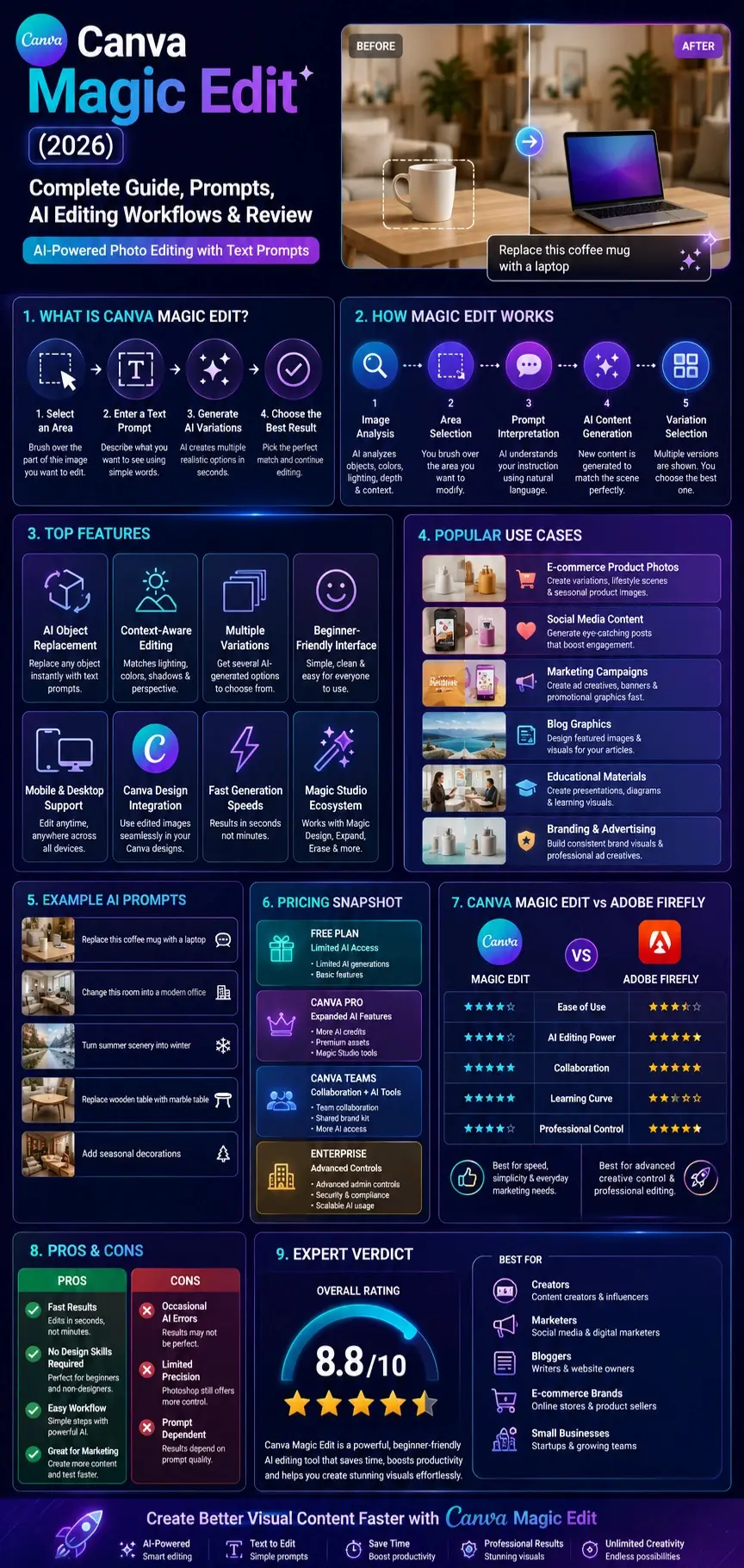
Canva Magic Edit is an AI-powered image-editing tool that lets users modify selected areas of a photo using text prompts rather than manual editing.
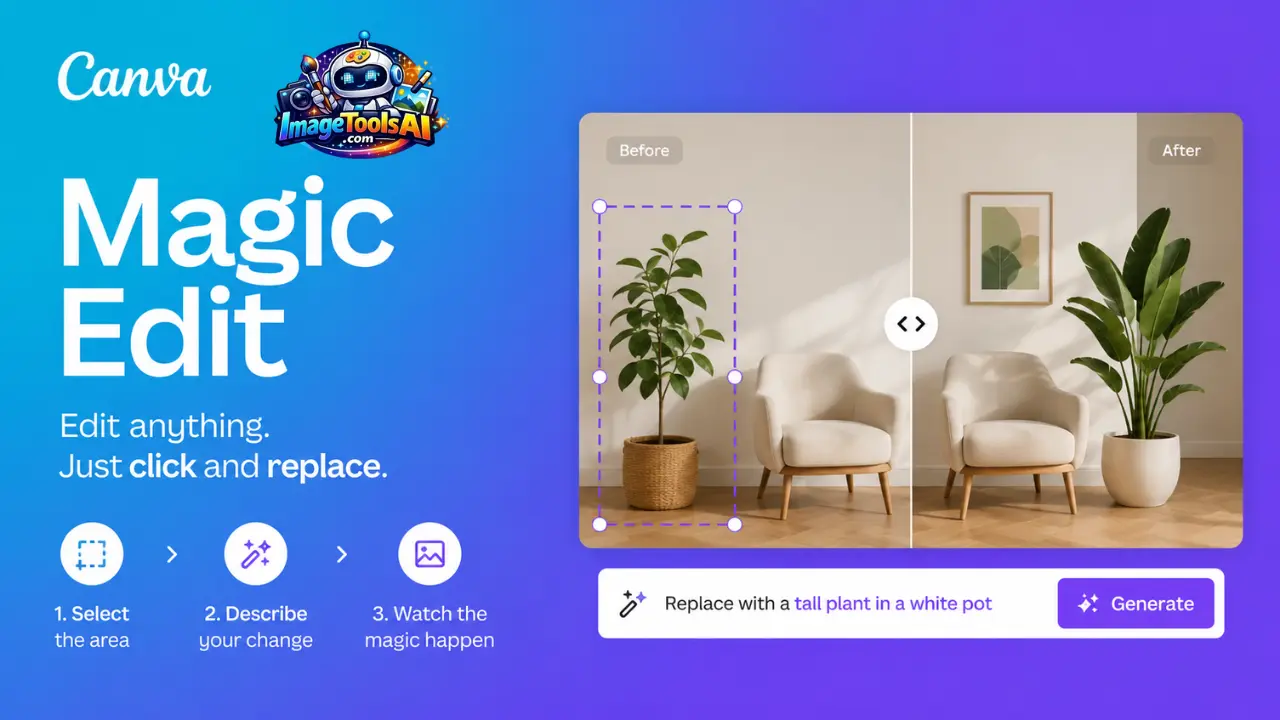
Rather than spending time masking objects, creating selections, cloning backgrounds, or compositing multiple layers, users simply:
- Select an area of an image
- Describe the desired change
- Generate AI-powered variations
- Choose the best result
The technology uses generative AI to understand:
- Image context
- Object placement
- Lighting
- Colors
- Perspective
- Shadows
- Visual consistency
As a result, edited elements often appear naturally integrated into the original image.

Examples of What Canva Magic Edit Can Do
You can use Magic Edit to:
- Replace a coffee mug with a laptop
- Turn a summer scene into winter
- Change clothing colors
- Add decorative elements
- Replace furniture
- Modify product packaging
- Create seasonal marketing assets
- Generate lifestyle product scenes
- Enhance promotional graphics
These capabilities make Canva Magic Edit especially valuable for users without professional photo editing experience.
Mini Summary
Canva Magic Edit simplifies complex image manipulation by allowing users to make realistic visual changes through simple text instructions.
How Canva Magic Edit Works
Understanding the underlying workflow helps users achieve better results.
Although Canva doesn’t expose every technical detail, the system generally combines:
- Generative AI models
- Computer vision
- Contextual image analysis
- Object recognition
- Natural language processing
Together, these technologies interpret your prompt and generate new visual content inside the selected region.
Image Analysis
The AI first analyzes:
- Objects
- Shapes
- Textures
- Lighting
- Depth
- Color harmony
This helps the system understand the visual environment.
Area Selection
Users brush over the section they want to modify.
The selected region becomes the editing zone.
Prompt Interpretation
The AI processes the text instruction.
Example:
Replace this wooden table with a modern marble table.
The system identifies:
- Existing object
- Replacement object
- Style requirements
Content Generation
The AI creates new image variations while attempting to preserve:
- Perspective
- Lighting direction
- Visual consistency
- Scene realism
Variation Selection
Multiple versions are generated.
Users can choose the best result and continue editing if needed.
Mini Summary
Magic Edit combines image understanding and text-based instructions to automate what traditionally required advanced design skills.
Why Canva Magic Edit Matters in 2026
AI image editing has evolved from an experimental technology into a mainstream productivity tool.
Several major trends explain why Canva Magic Edit has become increasingly important.
Content Demand Is Exploding
Businesses now create visual content for:
- TikTok
- Blogs
- E-commerce stores
- Email campaigns
- Digital ads
Producing these assets manually is expensive and time-consuming.
Magic Edit helps reduce production bottlenecks.
Small Businesses Need Affordable Design Solutions
Not every company can hire:
- Graphic designers
- Retouchers
- Photoshop specialists
Canva’s AI tools allow smaller teams to create professional-looking content at a fraction of the cost of traditional methods.
Faster Marketing Iteration
Modern marketing requires constant testing.
Teams often need multiple versions of:
- Product photos
- Ad creatives
- Promotional graphics
- Seasonal campaigns
Magic Edit allows rapid experimentation.
AI Is Becoming a Core Creative Skill
Just as photo editing became an essential digital skill over the last two decades, AI-assisted editing is quickly becoming part of everyday workflows.
Professionals who learn these tools today gain a competitive advantage.
Key Industry Trend
The future is not AI replacing creativity.
The future is AI amplifying creativity by eliminating repetitive tasks.
Canva Magic Edit is a strong example of this shift.
Key Features of Canva Magic Edit
The popularity of Canva Magic Edit comes from a combination of simplicity and surprisingly powerful capabilities.
AI Object Replacement
Users can replace existing objects using text instructions.
Examples include:
- Furniture
- Clothing
- Technology products
- Decorative elements
- Background objects
This dramatically reduces editing time.
Context-Aware Editing
One of the most impressive features is contextual understanding.
The AI attempts to match:
- Lighting
- Colors
- Perspective
- Depth
- Texture
This helps edits appear natural.
Multiple Variations
Instead of generating a single result, Canva typically provides several options.
Benefits include:
- More creative flexibility
- Better quality control
- Faster experimentation
Beginner-Friendly Interface
Many AI tools still have steep learning curves.
Magic Edit focuses on simplicity.
Users can start editing within minutes.
Mobile and Desktop Support
Canva’s ecosystem allows editing across:
- Web browsers
- Desktop applications
- Mobile apps
This flexibility appeals to creators working on multiple devices.
Integration with Canva Designs
Unlike standalone AI editors, Magic Edit works directly inside Canva projects.
Users can immediately incorporate edited images into:
- Presentations
- Social posts
- Ads
- Marketing materials
- Videos
Fast Generation Speeds
Most edits are generated within seconds rather than minutes.
This makes rapid content production possible.

Part of Canva Magic Studio
Magic Edit works alongside other AI-powered tools, creating a more complete creative workflow.
Examples include:
- Magic Design
- Magic Write
- Magic Media
- Magic Expand
- Magic Eraser
- Magic Grab
We’ll explore these integrations later in the guide.
Feature Overview Table
| Feature | Canva Magic Edit Benefit |
| Object Replacement | Swap image elements instantly |
| AI Generation | Create realistic variations |
| Text Prompt Editing | Natural language control |
| Multiple Outputs | More creative options |
| Context Awareness | Better realism |
| Mobile Access | Edit from anywhere |
| Canva Integration | Faster workflows |
| Magic Studio Support | Expanded creative capabilities |
Mini Summary
Canva Magic Edit succeeds because it combines powerful AI capabilities with a simple user experience that appeals to both beginners and professionals.
Benefits of Canva Magic Edit for Creators and Businesses
The true value of Canva Magic Edit isn’t simply image editing.
Its real advantage is productivity.
Content Creators
Creators can:
- Produce more visuals
- Test multiple styles
- Build stronger personal brands
- Reduce editing workload
This means more time creating content and less time editing.
Bloggers
Bloggers often need:
- Featured images
- Pinterest graphics
- Social media visuals
- Article illustrations
Magic Edit helps generate these assets quickly.
E-commerce Businesses
Online stores can create:
- Product variations
- Lifestyle scenes
- Seasonal campaigns
- Promotional images
Without scheduling expensive photoshoots.
Marketing Teams
Marketing departments frequently require:
- A/B testing creatives
- Campaign visuals
- Ad graphics
- Brand content
Magic Edit accelerates production cycles.
Agencies
Agencies can:
- Deliver projects faster
- Scale creative output
- Reduce production costs
- Improve client turnaround times
Educators
Teachers and trainers can create:
- Presentations
- Educational Visuals
- Learning materials
More efficiently.
Business Impact Table
| Business Goal | How Magic Edit Helps |
| Reduce Costs | Less manual editing |
| Increase Speed | Faster content production |
| Improve Creativity | More experimentation |
| Scale Marketing | Generate more visuals |
| Improve Engagement | Better visual content |
| Boost Productivity | Fewer repetitive tasks |
Key Takeaway
The biggest benefit of Canva Magic Edit isn’t replacing designers. It’s helping individuals and teams create better visual content faster while maintaining creative control.
Canva Magic Edit Step-by-Step Tutorial
Now that you understand what Canva Magic Edit is and why it matters, let’s explore exactly how to use it effectively.
Many beginners assume AI editing is completely automatic. In reality, the quality of your selection area and prompt can dramatically affect the final result.
The workflow below follows current Canva Magic Edit best practices and is suitable for creators, marketers, bloggers, ecommerce brands, and business users.
Step 1: Upload or Select an Image
Open Canva and create a new design or open an existing project.
You can:
- Upload your own image
- Use Canva stock photos
- Import product photos
- Edit social media graphics
- Modify marketing assets
Best Images for Magic Edit
The AI generally performs better when:
Objects are clearly visible
Lighting is consistent
The image is high resolution
The selected object is not heavily obstructed
Avoid blurry or low-quality images whenever possible.
Step 2: Select the Image
Click the image you want to edit.
Canva will display image editing tools.
Choose:
Edit Photo → Magic Edit
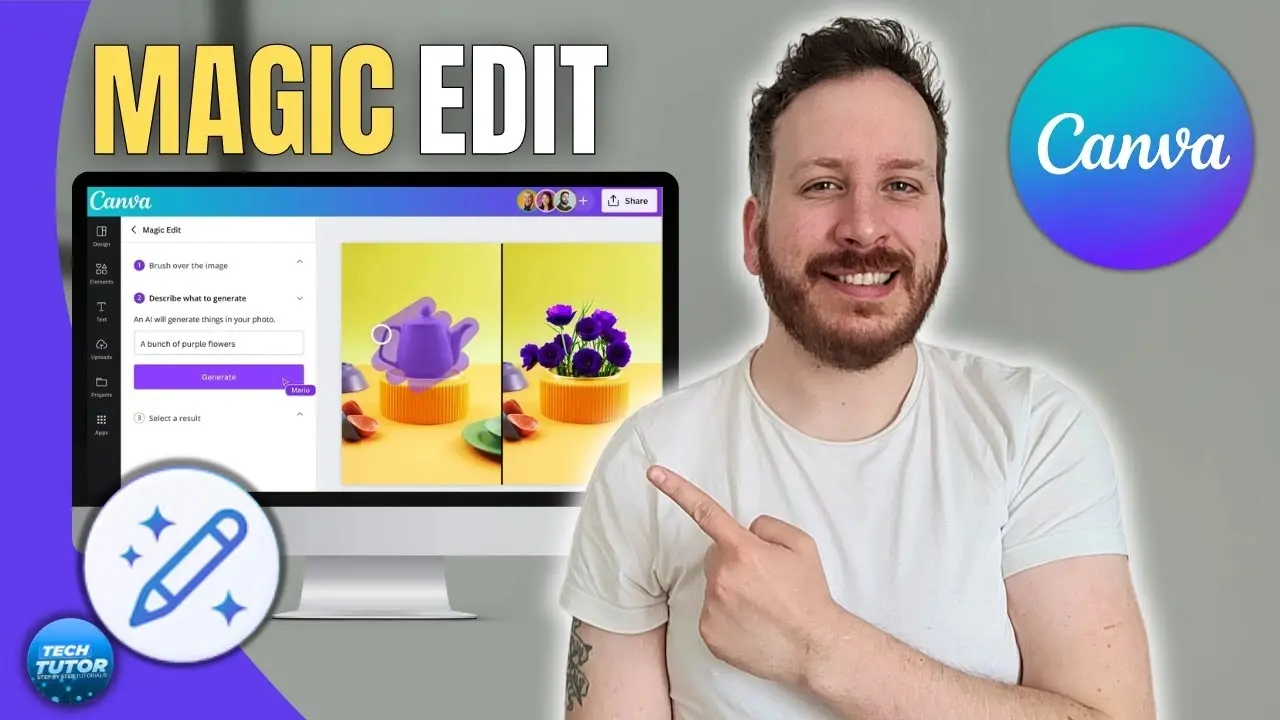
Depending on future Canva updates, menu locations may change slightly, but the workflow remains largely the same.
Step 3: Brush Over the Area
This is one of the most important steps.
Use the selection brush to highlight the object or area you want to modify.
Good Selection Example
If replacing a chair:
Brush only over the chair.
Bad Selection Example
Brush over the chair, floor, wall, and surrounding furniture.
Over-selecting often causes unwanted image changes.
Expert Tip
Slightly extend the selection beyond object edges.
This gives the AI more context and often creates cleaner results.
Step 4: Enter Your Prompt
Describe what you want to see.
Example:
Replace this office chair with a modern ergonomic black chair.
The more specific your instruction, the better the outcome.

Step 5: Generate Variations
Magic Edit generates several options.
Review each version carefully.
Look for:
- Realistic shadows
- Correct perspective
- Natural lighting
- Object accuracy
- Visual consistency
Step 6: Choose the Best Version
Select the strongest result.
Don’t automatically choose the first version.
Often, one variation significantly outperforms the others.
Step 7: Continue Refining
Professional creators rarely stop after one generation.
Instead they:
- Edit again
- Refine prompts
- Adjust objects
- Improve backgrounds
Multiple iterations usually produce the best results.
Canva Magic Edit for E-commerce
E-commerce businesses are among the biggest beneficiaries of AI image editing.
Traditional product photography often requires:
- Photographers
- Studio rentals
- Lighting equipment
- Editing specialists
Magic Edit reduces many of these costs.
Product Variations
Instead of photographing multiple versions of a product:
Generate variations using AI.
Examples:
- Different colors
- Different packaging
- Different environments
- Seasonal versions
Lifestyle Photography
Customers prefer seeing products in realistic settings.
Magic Edit can help create:
- Home office scenes
- Kitchen environments
- Outdoor settings
- Lifestyle contexts
Seasonal Marketing
Retail brands constantly create:
- Christmas campaigns
- Halloween promotions
- Summer sales
- Black Friday creatives
Magic Edit helps produce these variations quickly.
E-commerce Workflow Example
- Upload product photo
- Remove distractions
- Replace background
- Add seasonal elements
- Create multiple variations
- Test marketing performance
This workflow can save hours per product.
Canva Magic Edit for Social Media
Social media platforms reward visual creativity.
Brands constantly compete for attention.
Magic Edit makes content experimentation easier.
Instagram Campaigns
Use Magic Edit to:
- Create themed posts
- Change environments
- Test visual concepts
- Build consistent branding
Facebook Advertising
Generate multiple creative variations for:
- A/B testing
- Retargeting ads
- Seasonal promotions
Pinterest Graphics
Pinterest users respond strongly to visual aesthetics.
Magic Edit can create:
- Lifestyle imagery
- Product scenes
- Seasonal inspiration graphics
LinkedIn Content
Professional audiences prefer polished visuals.
Use Magic Edit to:
- Upgrade business imagery
- Create branded content
- Improve presentation graphics
Social Media Mini Summary
The biggest advantage is speed.
Instead of designing multiple visuals manually, marketers can generate numerous concepts quickly and test what performs best.
Canva Magic Edit Pricing
One of the most common questions users ask is whether Canva Magic Edit is free.
The answer depends on your Canva plan and Canva’s current AI usage policies.
Because Canva regularly updates its AI features, credit system, and subscription tiers, users should always verify the latest information on Canva’s official pricing page.
Is Canva Magic Edit Free?
Generally, Canva provides limited access to AI features for free users, while advanced usage and higher generation limits are available through paid plans.
Free users may receive:
- Limited AI generations
- Restricted access to certain Magic Studio features
- Lower monthly usage allowances
Paid plans typically unlock:
- More AI credits
- Faster workflows
- Additional collaboration features
- Premium design assets
- Expanded Magic Studio access
Typical Canva User Plans
| Plan | Best For | AI Feature Access |
| Free | Casual creators | Limited usage |
| Canva Pro | Individuals & freelancers | Expanded AI access |
| Canva Teams | Businesses & agencies | Collaboration + AI tools |
| Enterprise | Large organizations | Advanced controls & scaling |
Important Note
Canva frequently adjusts:
- AI generation limits
- Feature availability
- Subscription benefits
Always review current official documentation before making purchasing decisions.
Canva Magic Edit Pros and Cons
Every AI tool has strengths and limitations.
A balanced review helps users make informed decisions.
Pros
Extremely Easy to Use
Beginners can start editing almost immediately.
No complex learning curve.
Fast Results
Edits are generated within seconds.
This significantly improves productivity.
Integrated Inside Canva
No need to export files to separate software.
Everything remains within one workflow.
Excellent for Marketing Content
Particularly useful for:
- Ads
- Social posts
- Blog graphics
- E-commerce visuals
No Photoshop Skills Required
Many tasks that once required professional editing knowledge can now be completed using text prompts.
Mobile-Friendly
Works across multiple devices.
Useful for creators working remotely.
Cons
Results Are Not Always Perfect
AI generations occasionally produce:
- Strange objects
- Visual inconsistencies
- Unrealistic details
Limited Precision
Photoshop still offers greater manual control.
Prompt Dependent
Weak prompts often produce weak results.
Complex Scenes Can Struggle
Crowded images sometimes confuse the AI.
Generation Limits May Apply
Depending on your subscription plan.

Quick Verdict Table
| Category | Rating |
| Ease of Use | 9.5/10 |
| Speed | 9/10 |
| Creativity | 8.5/10 |
| Professional Output | 8/10 |
| Value for Money | 9/10 |
| Precision Control | 7/10 |
| Beginner Friendliness | 10/10 |
| Overall Score | 8.8/10 |
Canva Magic Edit vs Adobe Firefly
Adobe Firefly is one of Canva’s strongest competitors.
Both platforms focus on generative AI editing.
However, their target audiences differ.
Canva Strengths
- Simpler interface
- Faster learning curve
- Better for beginners
- Integrated design ecosystem
- Easier collaboration
Firefly Strengths
- More advanced image generation
- Better creative control
- Strong Adobe ecosystem integration
- Professional workflow support
Comparison Table
| Feature | Canva Magic Edit | Adobe Firefly |
| Ease of Use | Excellent | Good |
| Learning Curve | Very Low | Moderate |
| Design Workflow | Excellent | Good |
| AI Editing | Strong | Very Strong |
| Collaboration | Excellent | Good |
| Marketing Assets | Excellent | Good |
| Professional Editing | Good | Excellent |
| Beginner Friendly | Excellent | Good |
Best Choice
Choose Canva Magic Edit if:
- You prioritize speed
- You are a beginner
- You work heavily inside Canva
Choose Firefly if:
- You need advanced creative control
- You already use Adobe products
Best Canva Magic Edit Alternatives
While Canva Magic Edit is powerful, several alternatives deserve consideration.
Adobe Firefly
Best for:
- Creative professionals
- Adobe users
- Advanced editing
Photoshop Generative Fill
Best for:
- Professional photo editing
- Commercial retouching
- Precision workflows
Midjourney
Best for:
- Concept art
- Creative Exploration
- AI-generated imagery
ChatGPT Image Editing
Best for:
- Conversational editing
- Rapid experimentation
- Creative ideation
Stable Diffusion Tools
Best for:
- Custom workflows
- Technical users
- Open-source flexibility
Alternative Comparison Table
| Tool | Best For | Skill Level |
| Canva Magic Edit | Marketing & content creation | Beginner |
| Adobe Firefly | Creative professionals | Intermediate |
| Photoshop Generative Fill | Precision editing | Advanced |
| Midjourney | AI art creation | Intermediate |
| ChatGPT Image Editing | Conversational creation | Beginner |
| Stable Diffusion | Custom workflows | Advanced |
People Also Ask:
Canva typically offers limited AI functionality to free users, while expanded access is available through paid plans. Always verify current plan details on Canva’s official website.
For many everyday marketing and content creation tasks, yes. However, Photoshop still offers superior precision and advanced editing capabilities for professionals.
Yes. Canva supports AI editing features across desktop and mobile platforms, making content creation more flexible.
In many cases, yes. However, commercial usage rights, AI policies, and licensing terms can change, so review Canva’s latest documentation before professional use.
AI-generated outputs depend heavily on image quality, prompt clarity, and scene complexity. More detailed prompts often improve results.
Conclusion:
Canva Magic Edit has evolved into one of the most practical AI image editing tools available for creators, marketers, freelancers, educators, and businesses. Its greatest strength is not necessarily producing perfect edits every time, but dramatically reducing the effort required to create professional visual content.
By combining natural language prompts with AI-powered image generation, users can replace objects, transform scenes, Create Marketing Assets, and experiment with creative concepts faster than ever before.
While professional designers and photographers may still require advanced tools for highly detailed work, Canva Magic Edit delivers an excellent balance of simplicity, speed, accessibility, and creative flexibility.
For most users, especially those already working inside Canva, it represents one of the highest-value AI productivity tools available today.
If your goal is to create better visual content faster, Canva Magic Edit is absolutely worth exploring.
Continue exploring ImageToolsAI.com for in-depth guides, comparisons, reviews, and expert insights covering the latest AI image generators, AI photo editors, AI design platforms, and creative automation tools shaping the future of digital content creation.